
Shopify Transmitter
We provide a full configured station template with the necessary datamap and jobs for the Dynamic JSON Transmitter!
Import the Station Template
To import the Shopify station template you need to have:
- A licence key for the OWL
- The Dynamic:JSON Connector installed in your system
For the import, please follow the following guide.
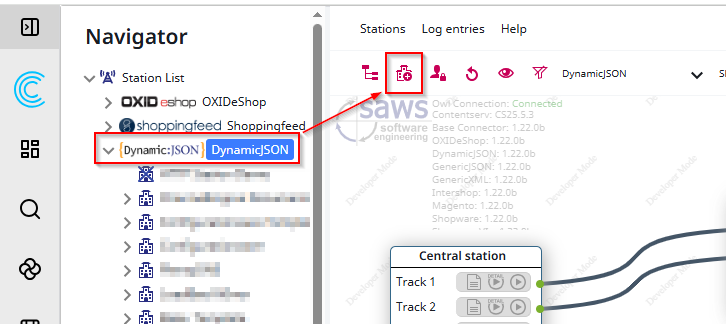 |
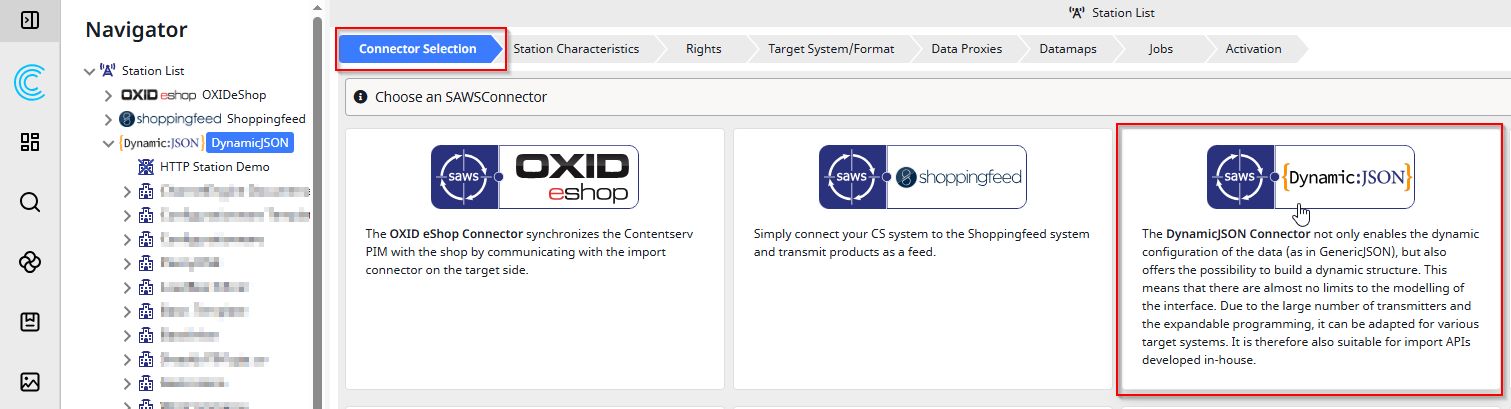 |
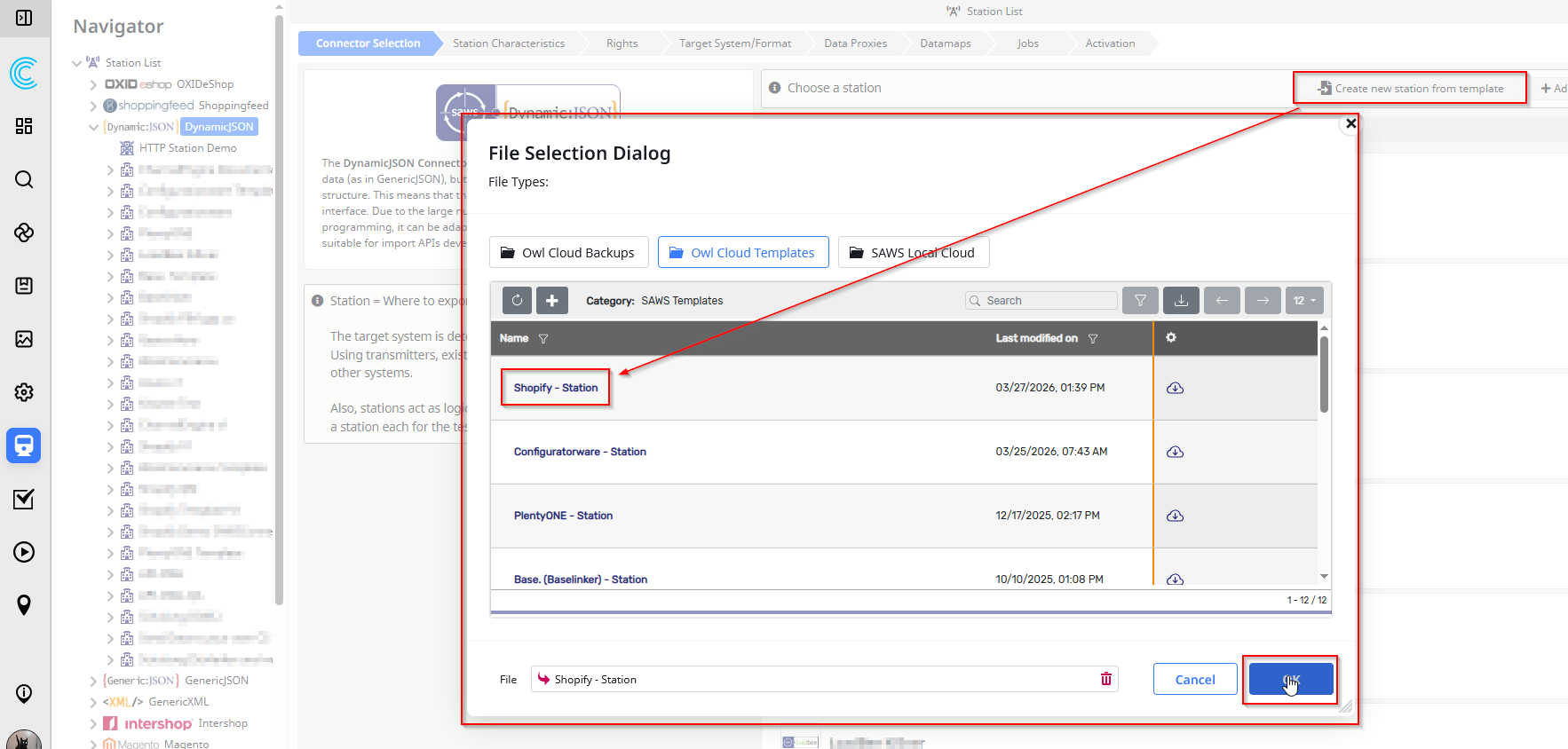 |
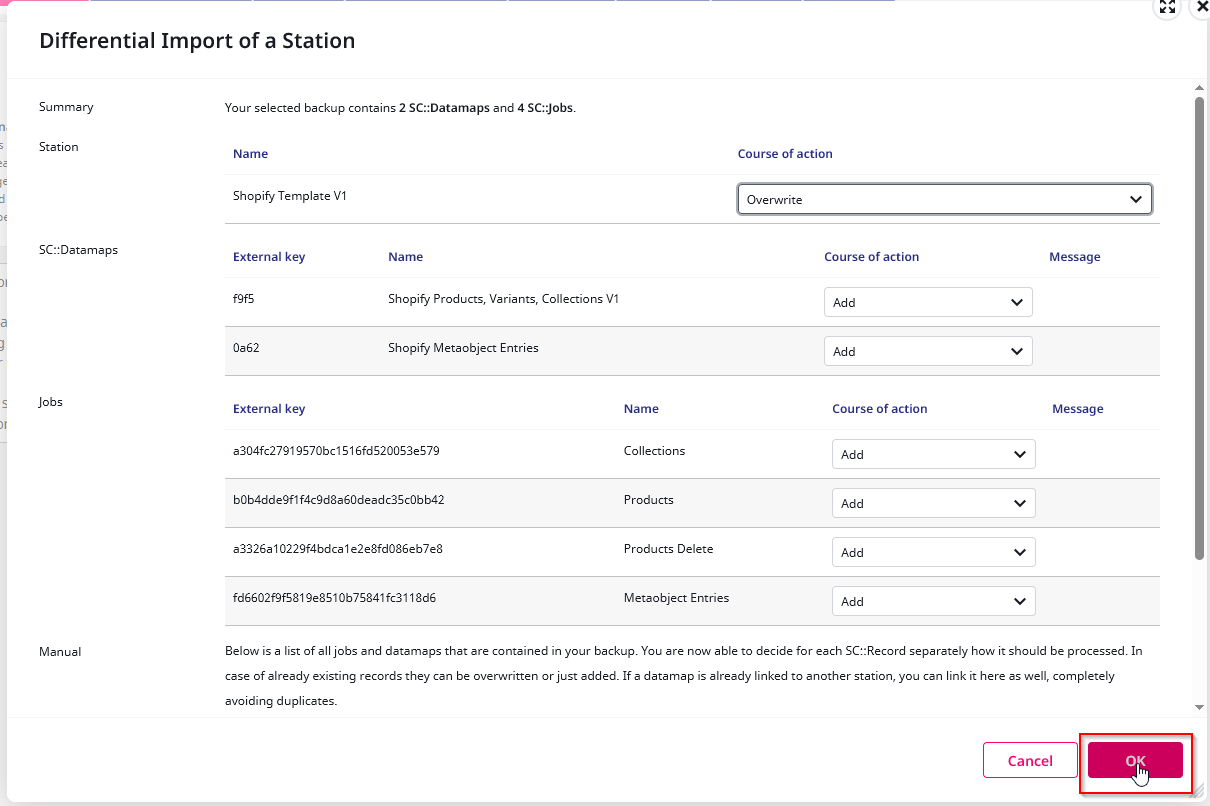 |
After successfully importing the station template you can procceed with the transmitter configuration.
Setup the transmitter
In the transmitter settings you need to setup the following things:
- The URL to the Shopify Shop
- The custom Metafield Identifier
- The Shopify API Version
- The Shopify Admin API Token
- The Shopify Storefront API Token
There is no need to install importer plugins in Shopify, as the SAWSConnector seamlessly integrates with Shopify’s HTTP Web API using GraphQL.
Custom Metafield Identifier
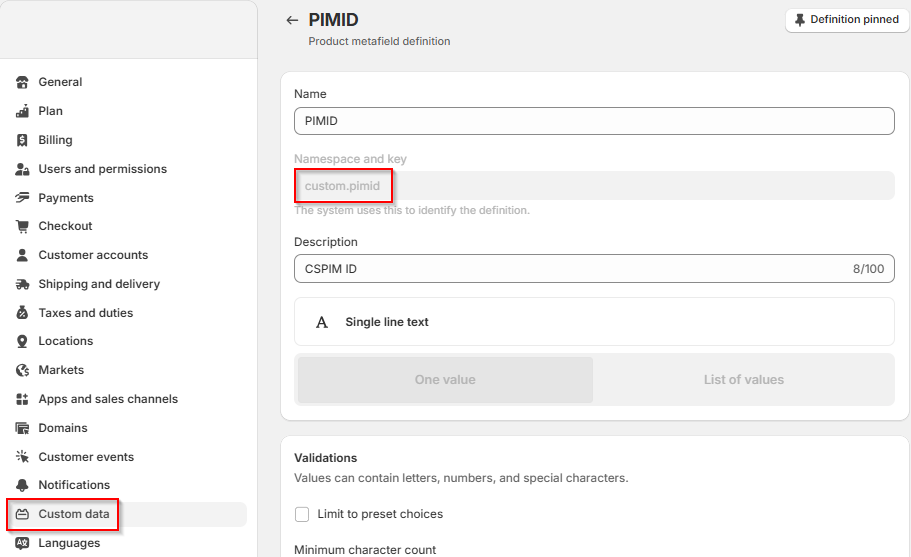
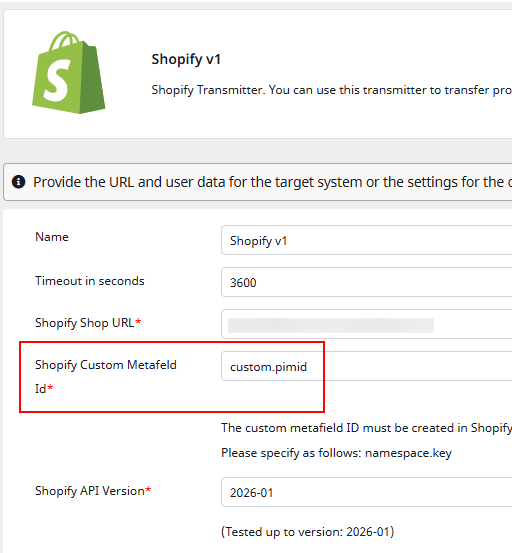
To create the custom Metafield for the identifier in the Shopify backend, set the name as you like and copy the name with the namespace after creation.
The custom metafield identifier is used to identify the product in Shopify with a value stored in Contentserv. The metafield identifier needs to be configured in the datamap to add, update or delete products or collections. In the transmitter configuration the identifier is set with <namespace>.<key>.
| Shopify Backend | Shopify Transmitter |
|---|---|
 |
 |
| e.g. productsUpdateCreate-Datamap |
|---|
 |
Version 1.20. and higher:
You can activate the checkbox for the proxy cache. If the checkbox is activated, all product ids will be cached so the initial loading time is reduced.
By deactivating the checkbox the cache gets cleared.
API Tokens
To use the Shopify transmitter set the “App Secret” and the “Client ID” in the Transmitter settings
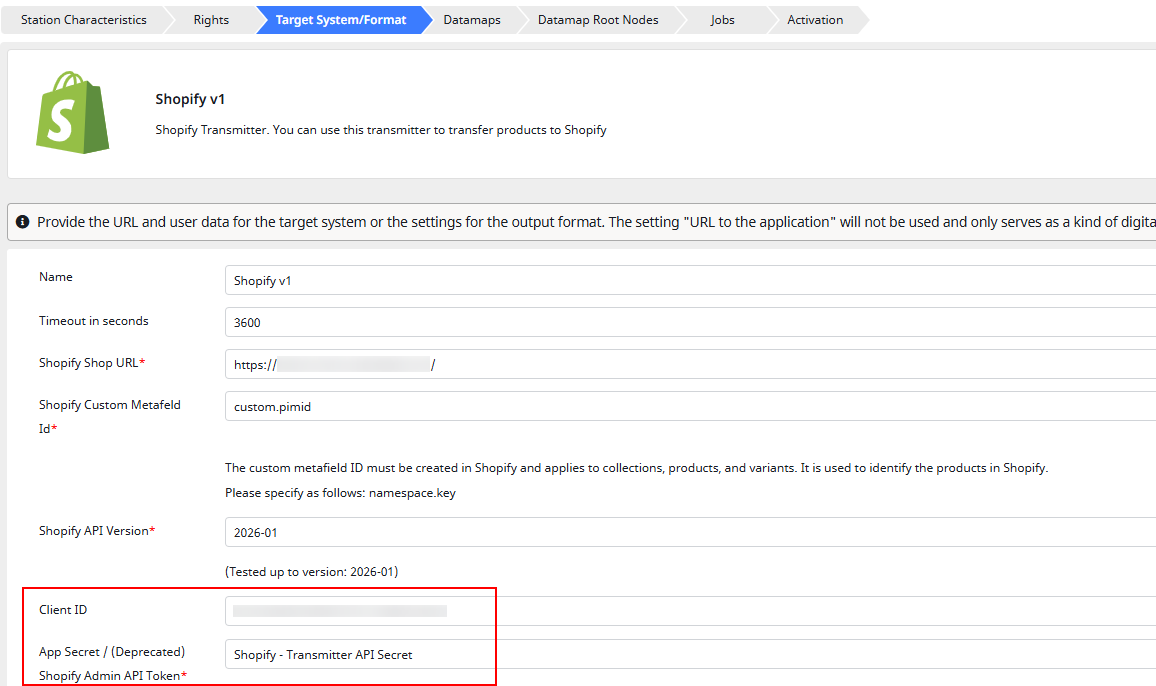
Important: The following guide for setting up the App only works if the App is created within the same organisation. The app must be created by the store owner. Otherwise the created API-Key will not work in your shop and Shopify will responde with HTTP 400 and the Error
Oauth error shop_not_permitted: Client credentials cannot be performed on this shop.
To check if you opened the developer dashboard in the correct organization, check the top right navigation in the developer dashboard:

| Install Custom API App and generate Token |
|---|
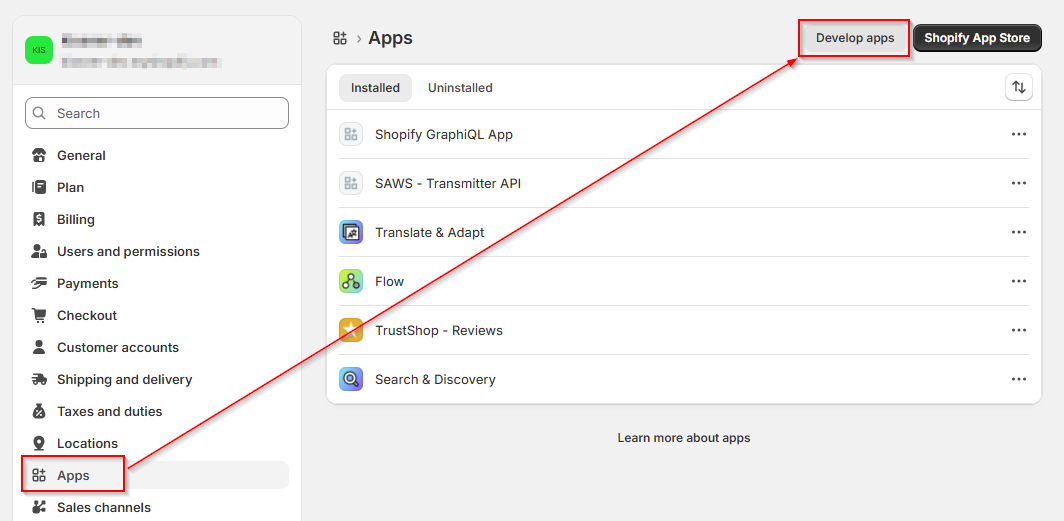
| 1. Go to the Developer Dashboard. Depending on your Shopify Version there are different ways to access the Developer Dashboard: |
| Settings > Apps > Develop Apps > Build Apps in Dev Dashboard |
 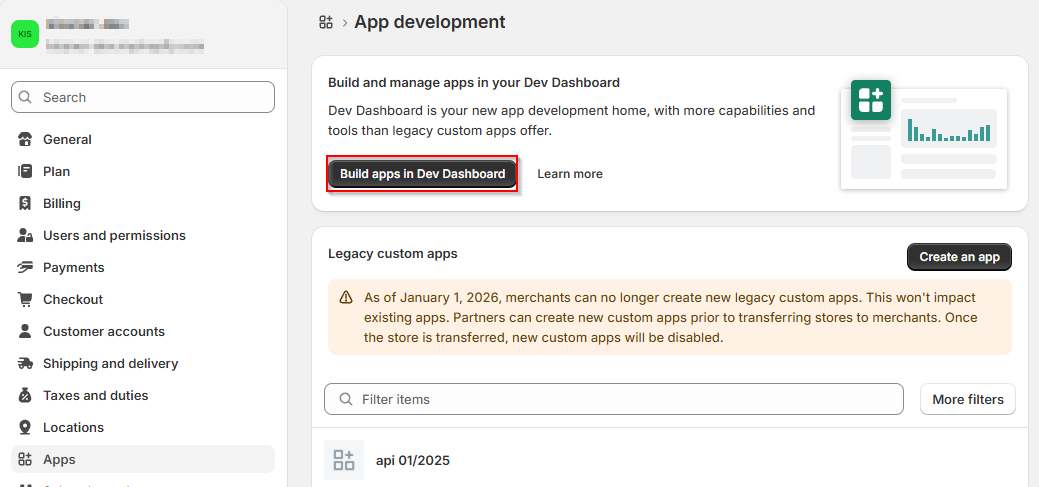 |
| On the Shopify Dashboard: Top Right > “View Dev Dashboard” |
 |
| 2. Create an app using the “Create App”-Button |
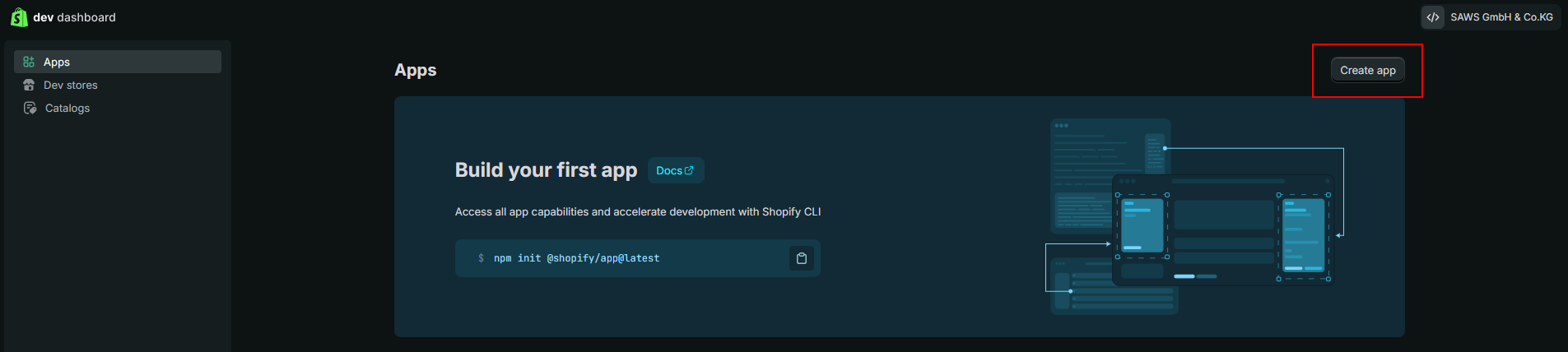 |
| 3. Give the app a name and click “Create” |
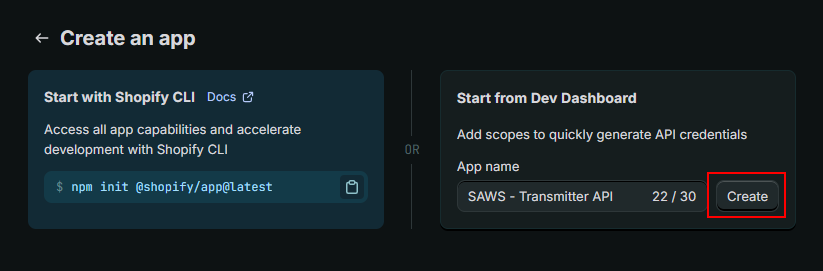 |
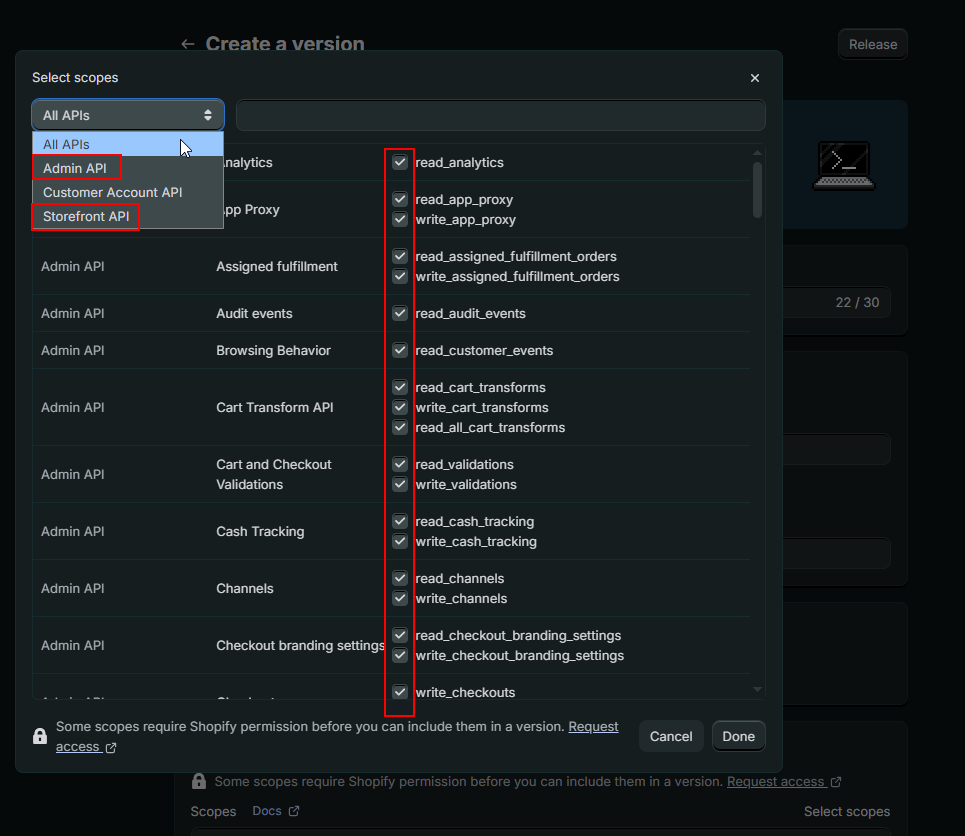
| 4. Add the right access scope to the app so the transmitter will work as expected. Important: You need to grant access to all the Endpoints from the Admin API and the Storefront API Click on “Done” when all the necessary rights are selected |
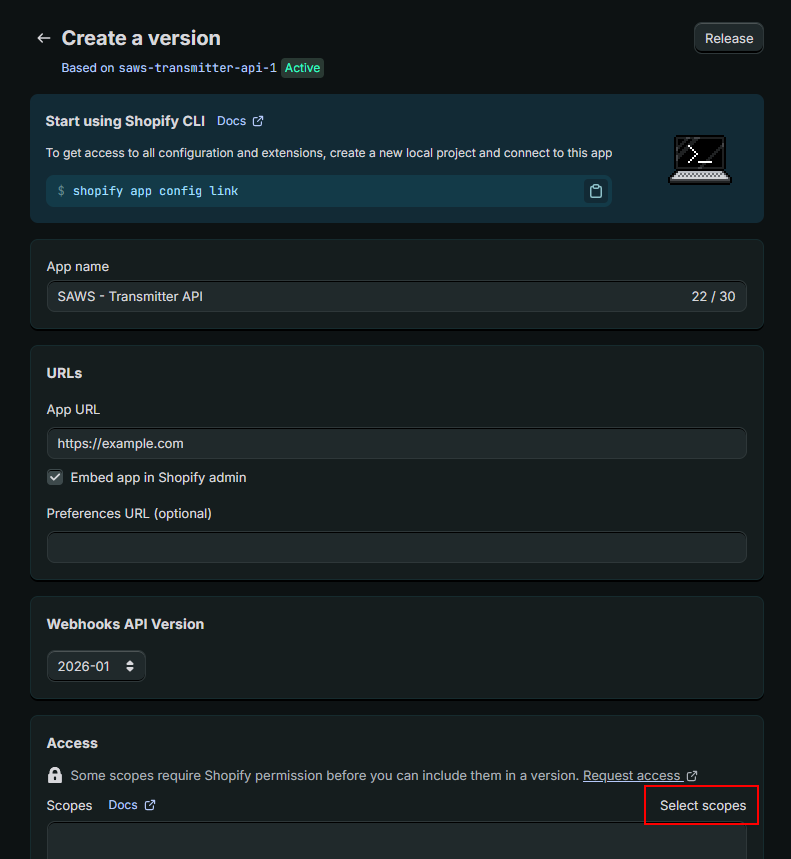 |
 |
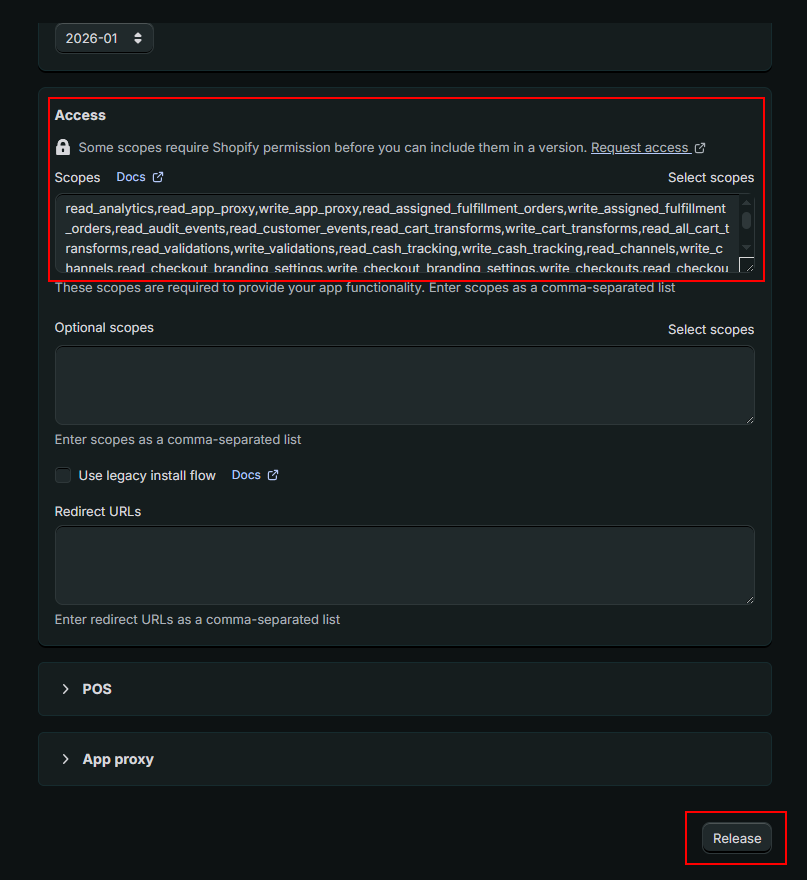
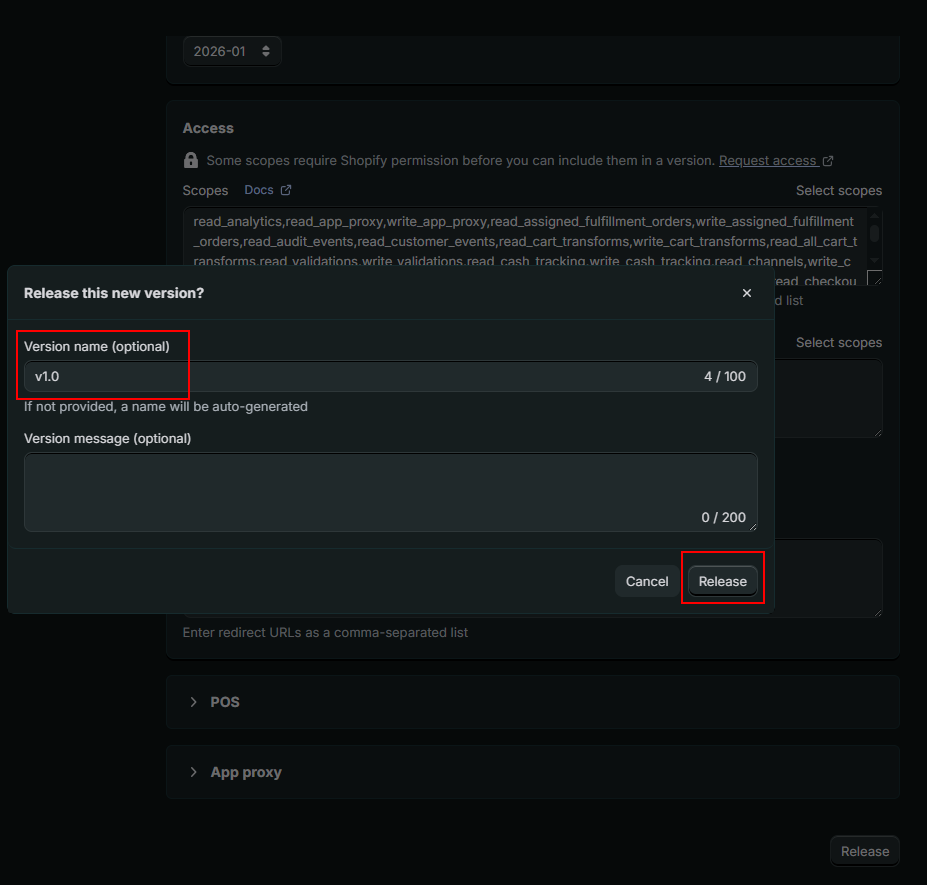
| 5. If the “Access” Field looks similar to the example one, click on “Release”. It is optional to set a version name |
 |
 |
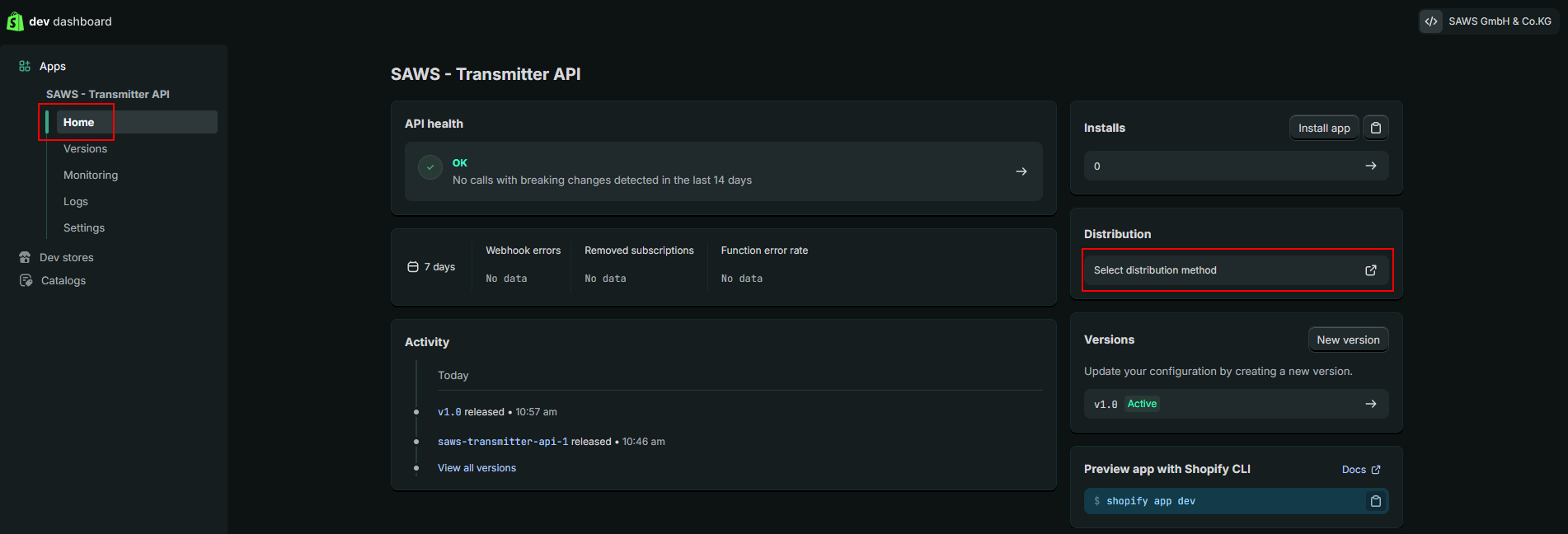
| 6. When your app is created, you need to install the App on your Shop. Go to “Home” in your App to select the distribution method and gernerate the installation link. Otherwise you can’t install the app. |
 |
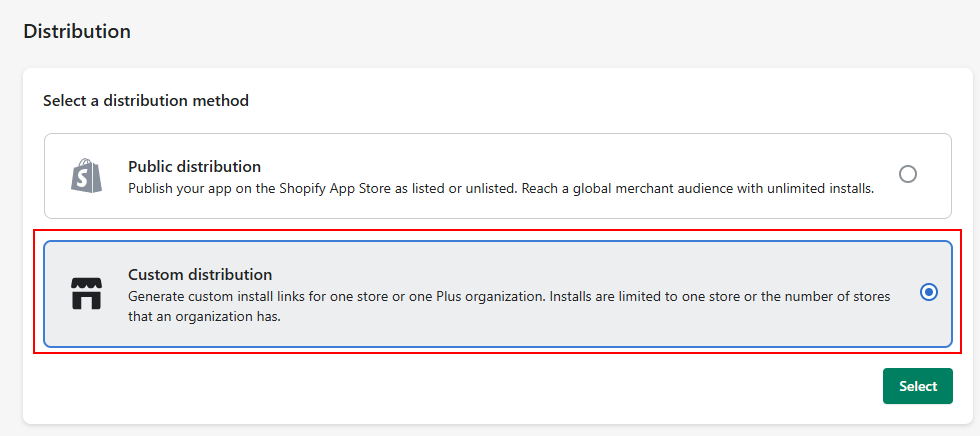
| 7. Select “Custom distribution” so the App doesn’t get shared to the Shopify App Store |
 |
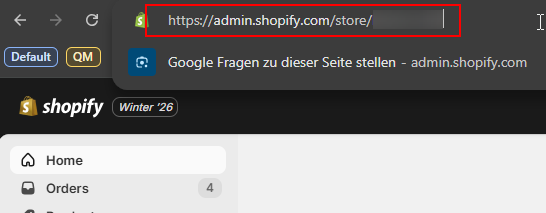
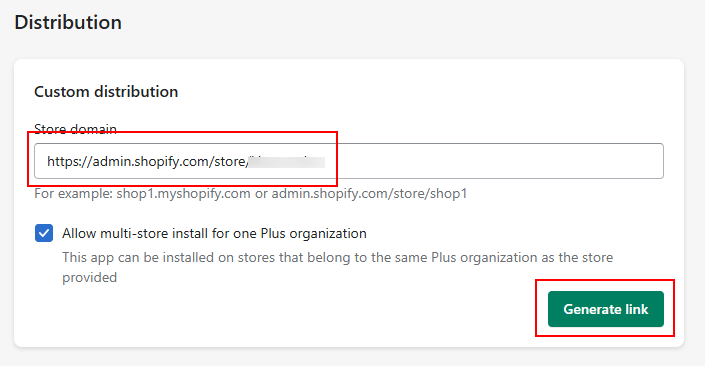
| 8. Insert your store domain This is necessary so the app can only be installed on your shop. Copy the URL from your dashboard like in the example below, insert it and click “Generate Link” |
 |
 |
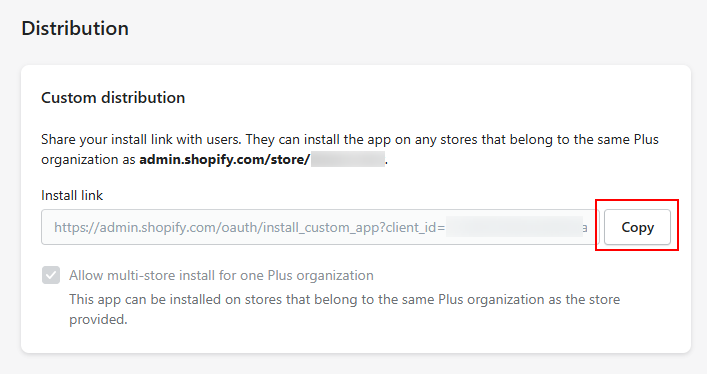
| 9. Copy the generated Link and open it up in a new Tab After opening the link, select the Shop where you want to install the app. (Only if you have multple stores) |
 |
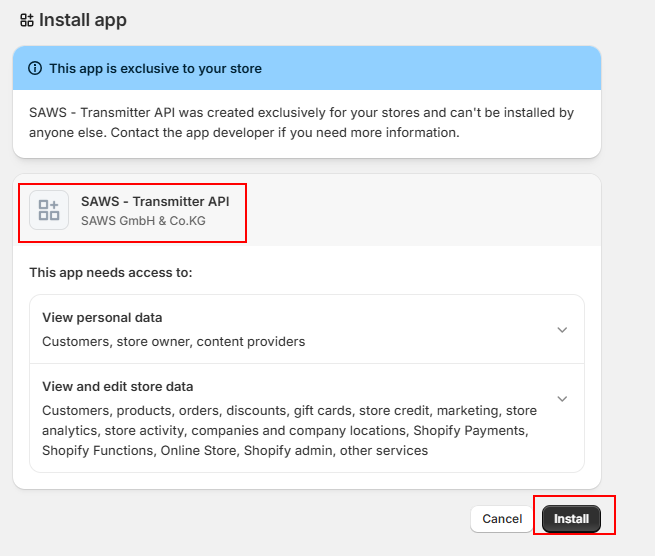
| 10. In your store, you should then see the install configuration. Click “Install” to install the app |
 |
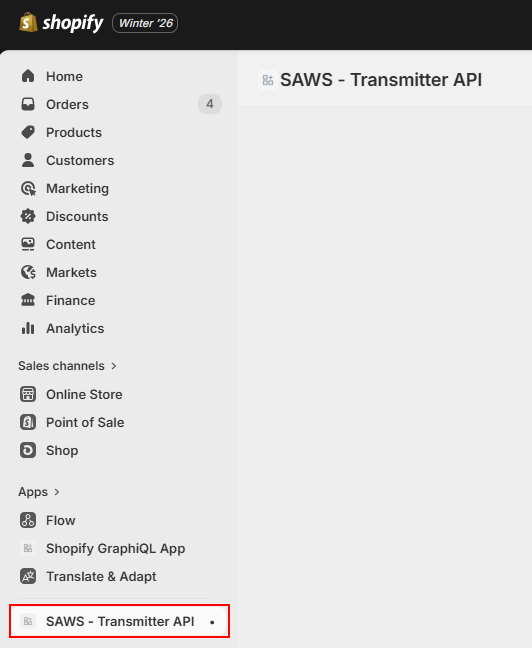
| If everything worked, you should see the app in the left navigation |
 |
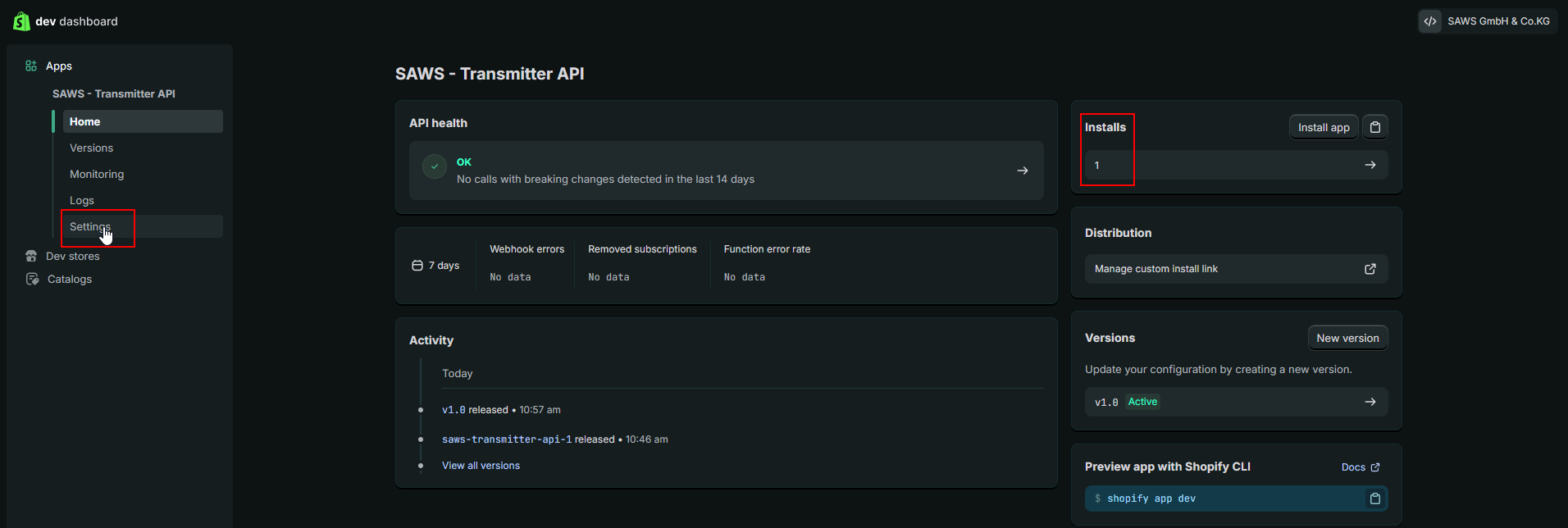
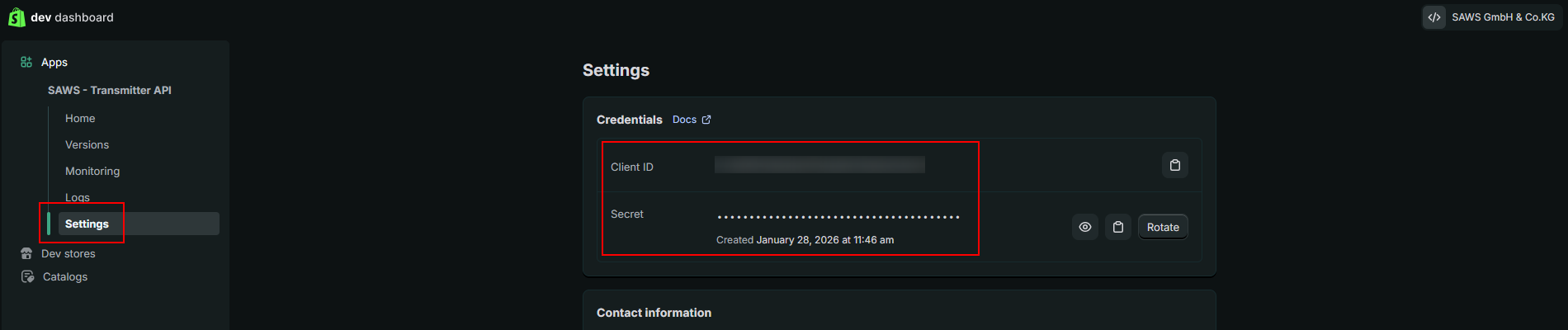
| 11. In the Developer Dashboard get Client ID and Secret In the dashboard will now be 1 Installation visible of the created app (probably you need to refresh the page). Click on Settings, there you can Copy the “Client ID” and the “Secret” which are the values you need for the transmitter settings. |
 |
 |
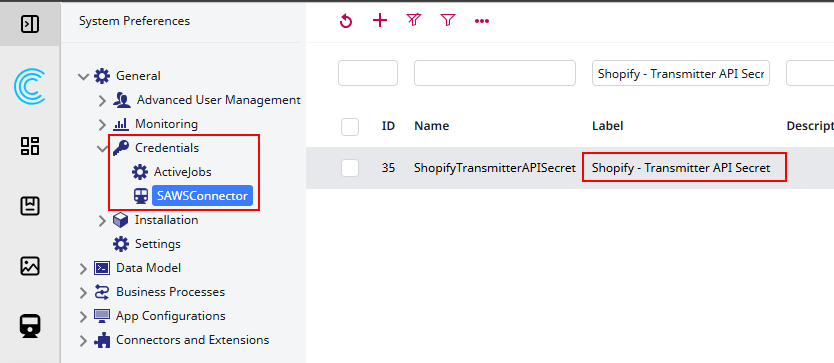
After configuring the tokens save them in Contentserv and select them in the Shopify Transmitter configuration.
| Contentserv configuration |
|---|
 |
|
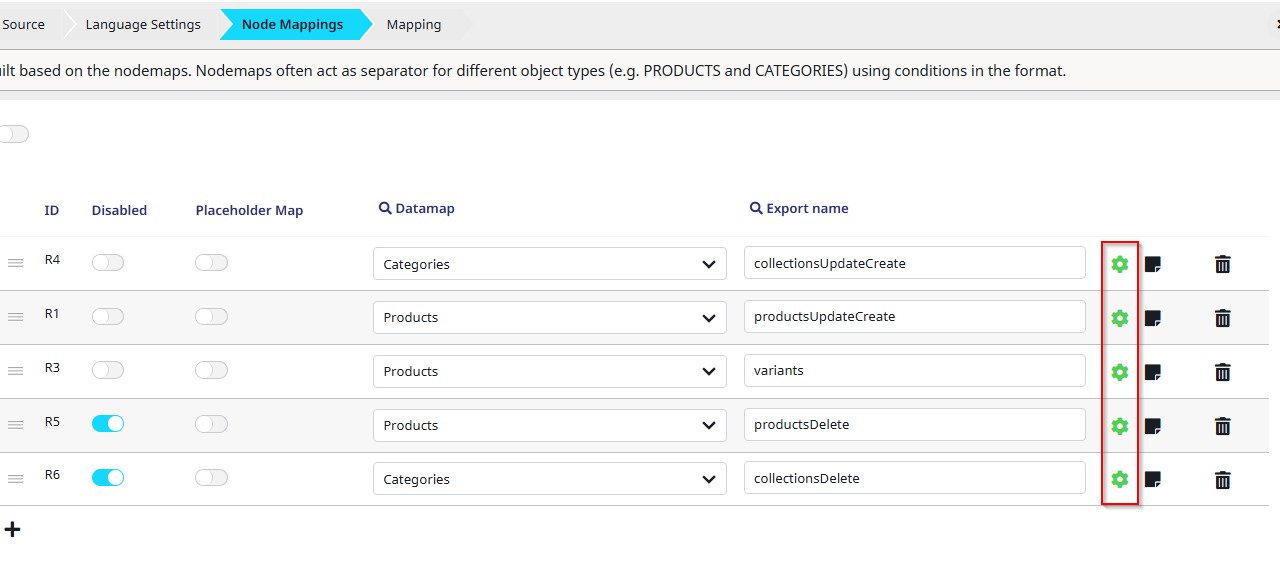
Node Mappings
Please ensure that the nodemap settings are set correctly to identify products and variants and to differentiate if the record needs to be created/updated or deleted.
 |
Configuring the datamaps
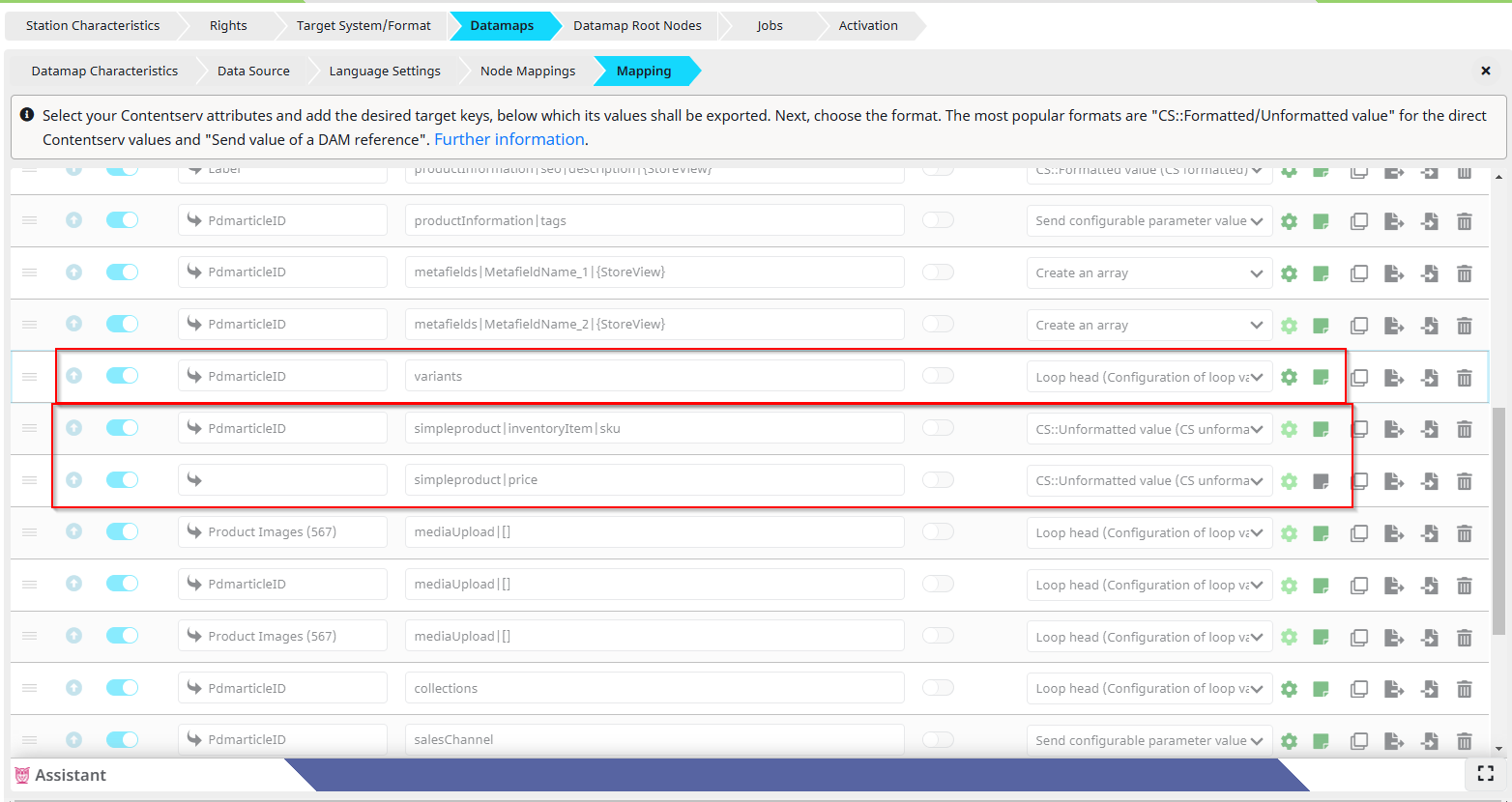
Every datamap (except for the variant datamap) needs the custom identifier metafield. Also Shopify needs at least a title to create a resource, the other rows are optional. The last row in the datamaps is always called ‘additionalInformation’. This row is ignored by Shopify but is necessary for the connector to work. In this row the csrecordid and the csrecordclass are stored.
If you export products with variants you need to configure the row called ‘variants’ in the ‘productUpdateCreate’ datamap, in which an array of the skus from the variants is stored. To connect the variants correctly to the product, you need to setup the sku for the variant in the ‘variants’ datamap.
If you export simple products you need to configure the simple product datamap rows.
Collections
Collections in Shopify are similar to categories in other shop systems. Our template provides a collection datamap that can be used to maintain collections in Shopify.
Most of the configuration works like the product configuration. There are some small differences like you are able to only maintain ONE media file on a collection.
Adding products to collections
There are two options to add products to collections (or remove them):
Using the “productUpdateCreate”-datamap
You can add products to existing collections using the row “collections” in the “productUpdateCreate”-datamap
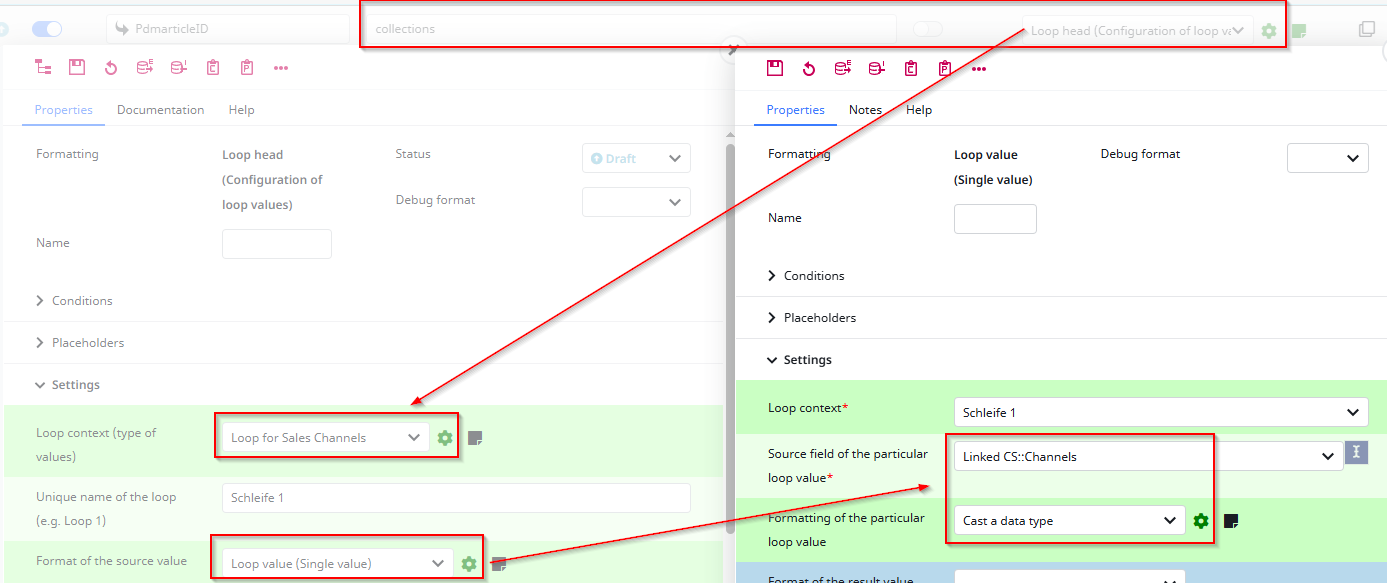
The currently exported product will get attached to all exported collections.
Creating smart collections
In Shopify you have the option to create “Smart-Collections”. These collections can also be created / maintained with the Transmitter.
Every smart collection has a “rule set” containing specific rules regarding what products will be added to these collections.
Important:
Although you can create and manage Smart Collections, after creating a smart collection it is NOT possible anymore to manually add products to these collections via the export function. This will cause an shopify error.
It is also NOT possible to add a rule set to an existing “custom” collection.
That means you need to define the rule set when the collection is created, and afterwards you can maintain the smart collection.
To create / update smart collections you need the row “collectionInformation|ruleSet” in your datamap
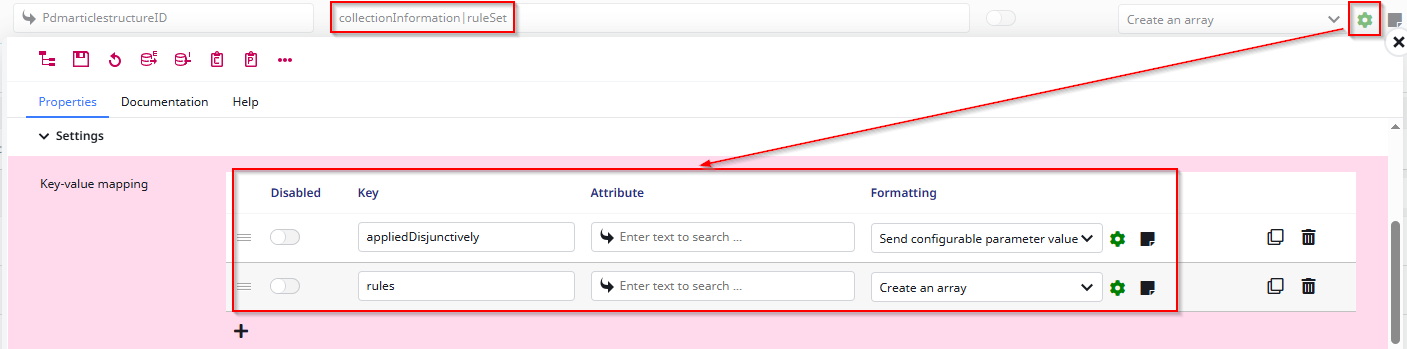
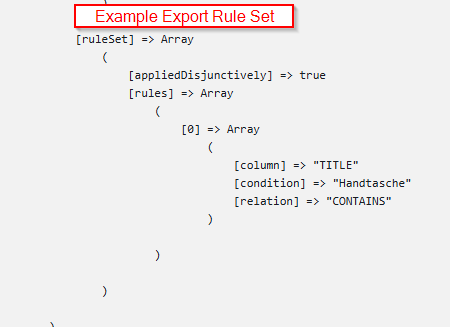
You can add as many rules as you like, each rule needs to contain the following three values (column, condition, relation)

The export for such rule set should look something like this:
| Available Columns | Available Relations |
|---|---|
| IS_PRICE_REDUCED | CONTAINS |
| PRODUCT_CATEGORY_ID | ENDS_WITH |
| PRODUCT_CATEGORY_ID_WITH_DESCENDANTS | EQUALS |
| PRODUCT_METAFIELD_DEFINITION | GREATER_THAN |
| PRODUCT_TAXONOMY_NODE_ID | IS_NOT_SET |
| TAG | IS_SET |
| TITLE | LESS_THAN |
| TYPE | NOT_CONTAINS |
| VARIANT_COMPARE_AT_PRICE | NOT_EQUALS |
| VARIANT_INVENTORY | STARTS_WITH |
| VARIANT_METAFIELD_DEFINITION | |
| VARIANT_PRICE | |
| VARIANT_TITLE | |
| VARIANT_WEIGHT | |
| VENDOR |
Bundles
The transmitter can also create “Bundles” in Shopify. This only works for bundles of simple products. To implement bundles you need to configure the datamap row “bundleInput”.
You can also import the datamap row into an existing datamap.
There are two options for the configuration, bundles with an attribute of PIM references or bundles with the complex article table.

This row is used to set the structure of the bundle. All the other values are set with the product datamap, similar to a simple product.
Metafields
If the metafield is language dependent, you need to set |{StoreView} behind the name.
In the datamap you always configure the metafield with the following key:
metafields|your-name
Version 1.20. and higher:
We provide a Format Plugin for Shopify Metafields as easier way to configure metafields.

You can find a detailed guide on how to use the Format Plugin here.
Legacy:
Every metafield gets configured as an array and needs the namespace, the key and its value. You can see the namespace and the key in your Shopify backend.
The value needs to be a string.

To fill a metafield with multiple values (List) you need to send an Array containing all the values which is encoded as a JSON-string.
Metafield References
This is only necessary when creating Metafields without the “Metafield Formal Plugin”
We also provide the following reference types for metafields:
- products (e.g @productRef:{PIM_IDENTIFIER} )
- variants (e.g. @variantRef:{SKU} )
- collections (e.g. @collectionRef:{PIM_IDENTIFIER} )
- media files (e.g. @mediaRef:{FILENAME} )
- meta objects (e.g. @metaobjectRef:{METAOBJECT_DEFINITION_TYPE}|{METAOBJECT_HANDLE} )
To use these reference values, the result value has to contain the key from the examples as prefix of the value.
This is a way to dynamically add the value, but you can also provide the Shopify ID.
Handle Metaobject Entries
The Transmitter can create, update or delete entries for existing metaobjects. Therefore we provide a configured datamap template which is also included in the Shopify Station template. A metaobject entry is always identified with the metaobject definition type and its unique handle.
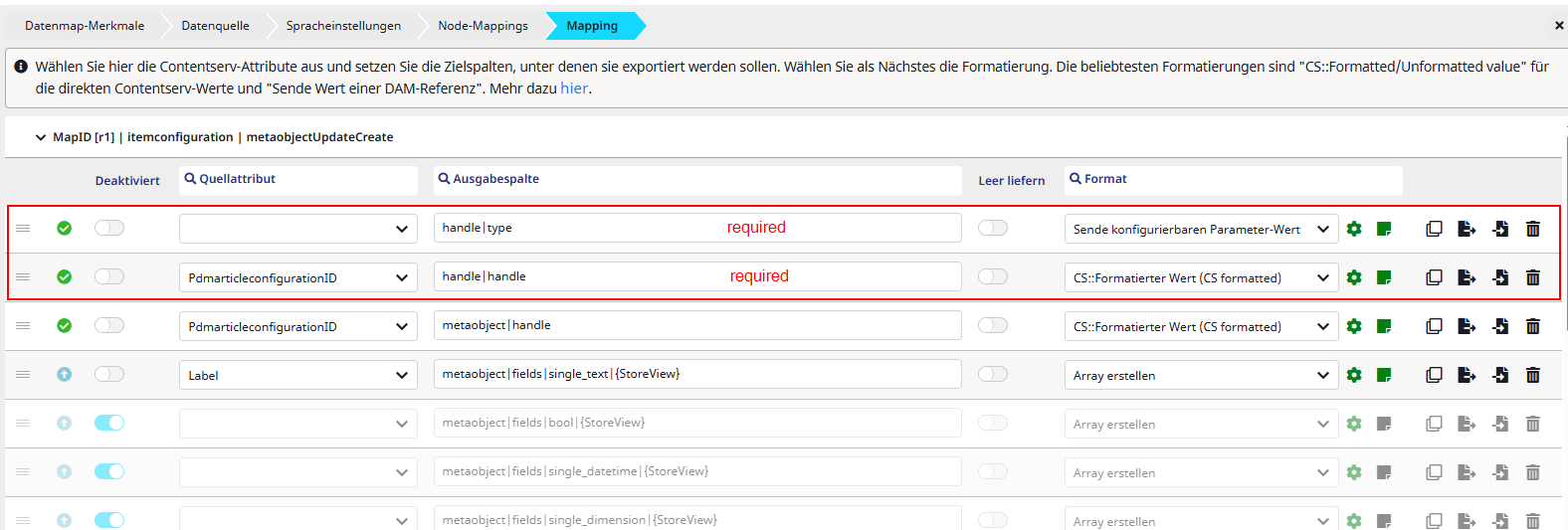
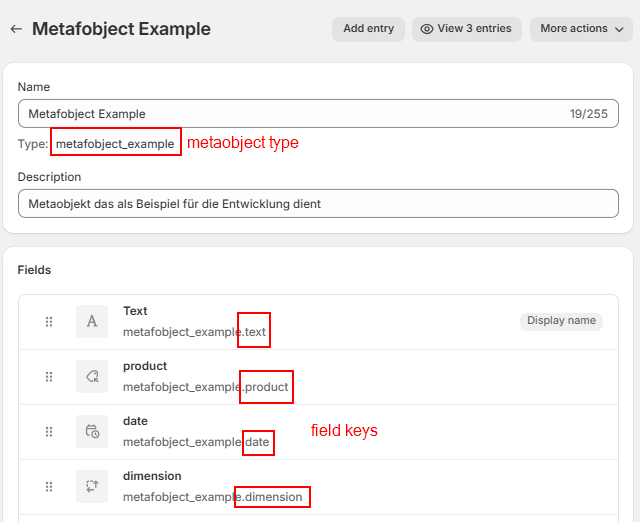
In Shopify you can find the values for the type and the field keys in the Metaobject Definition
(Settings > Custom Data > Metaobject definitions)
You can use references the same way as in the metafields.
Create for each field that you want to fill a row in the datamap with a key and a value. There are some examples for different types already configured in the template.
You can also set the status of the entry (ACTIVE or DRAFT) and a template suffix.
Media to upload
Media can be uploaded in two different ways.
The datamap export column is “mediaUpload|[]” or “upload|[]”
| mediaUpload | This is used for images or videos which are part of the product like product pictures. Also, with this key you can create the media for variants in Shopify Types: IMAGE, VIDEO, EXTERNAL_VIDEO, MODEL_3D |
| upload | This is used for just uploading files to Shopify – the files are not connected to a product or variant but then e.g. can be referenced by metafields. Types: FILE, IMAGE, VIDEO, EXTERNAL_VIDEO, MODEL_3D |
The media for variants and products gets uploaded via the ‘productUpdateCreate’ datamap. You can send only 1 image per variant but multiple media files per product.
To connect the media files to a variant you also need to maintain the datamap row ‘additionalInformation’.
Version 1.20. and higher:
We provide a Format Plugin for Shopify Media as easier way to send media to Shopify.

You can find a detailed guide on how to use the Format Plugin here.
Legacy:
| Every media upload needs the following keys: |
|---|
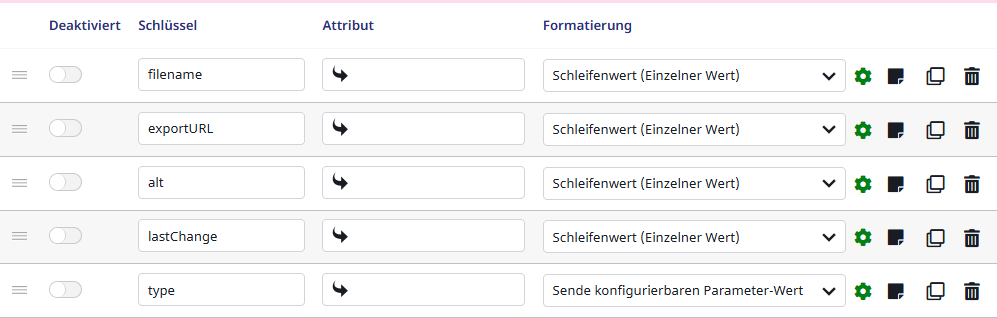 |
Note: for collections you also need to maintain the collectionInformation|image row in the datamap, otherwise the image can’t be connected to the collection.
Markets & Sales Channels
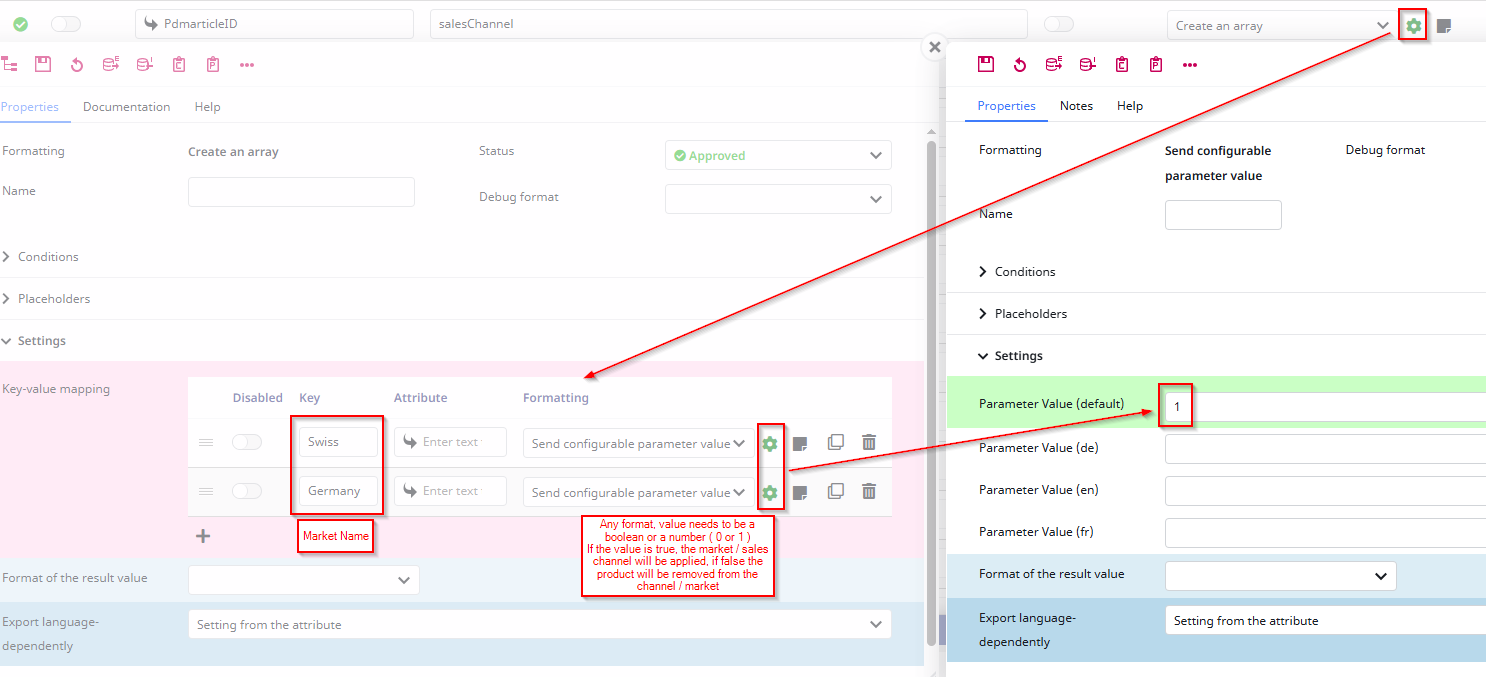
You can control the assignment to markets and sales channels via the “salesChannels” datamap row.
In this field, the market name / sales channel name must be used. The value is transmitted as an array, where you can set the value to:
1 → to assign the product to the market / sales channel
0 → to remove the product from the market / sales channel
This allows you to add or remove a product from specific markets / sales channels as needed.
Version 1.21 and higher
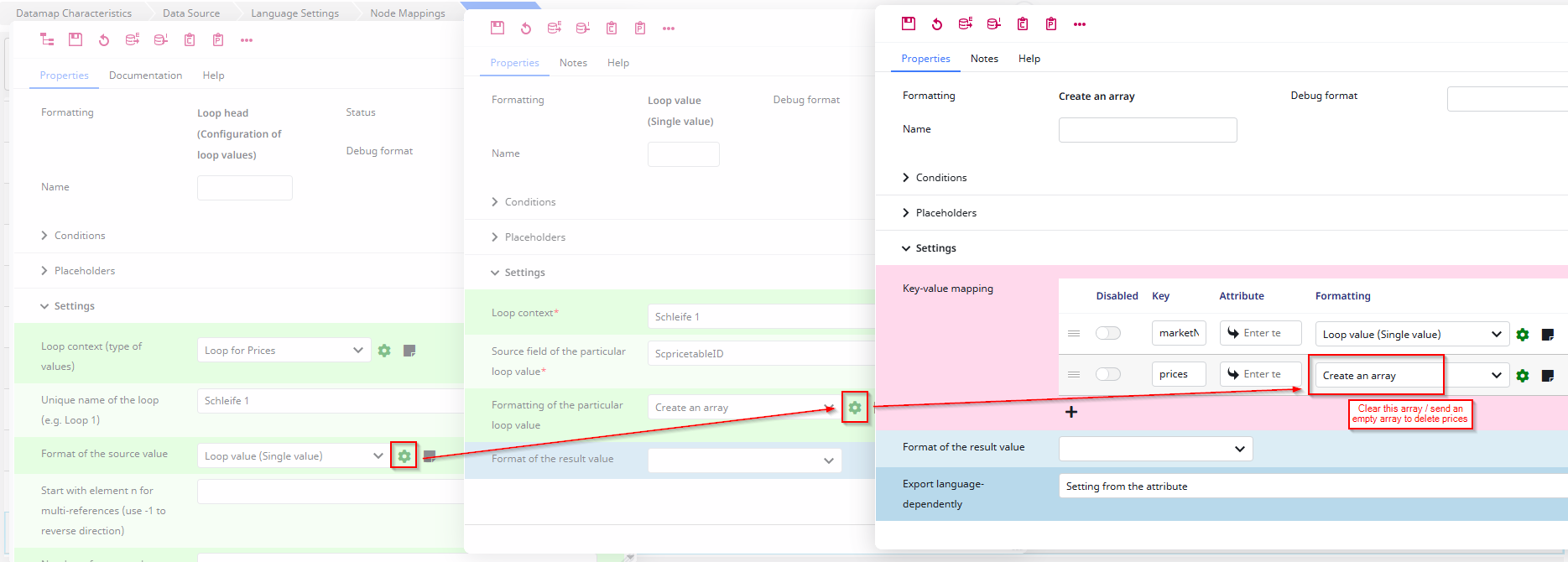
You can set market specific prices additional to normal prices.
For simple products use the row “simpleProduct|catalogPrices|[]” in the productUpdateCreate-datamap, otherwise for variants use “catalogPrices|[]” in the variants datamap.
We provide a fully configured datamap row that you can import into your currently used datamap. This row is also part of the Shopify Station and Shopify Datamap Template. The template is configured for the SAWS Price Tables
Note: There is only one datamap row template, please ensure that you use the correct datamap key (for variants / simple product). The configuration is the same.
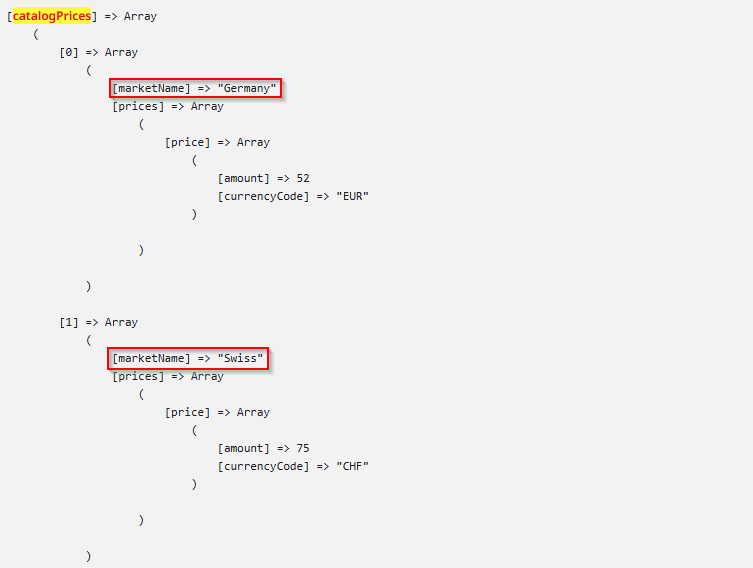
The expected output looks like this:
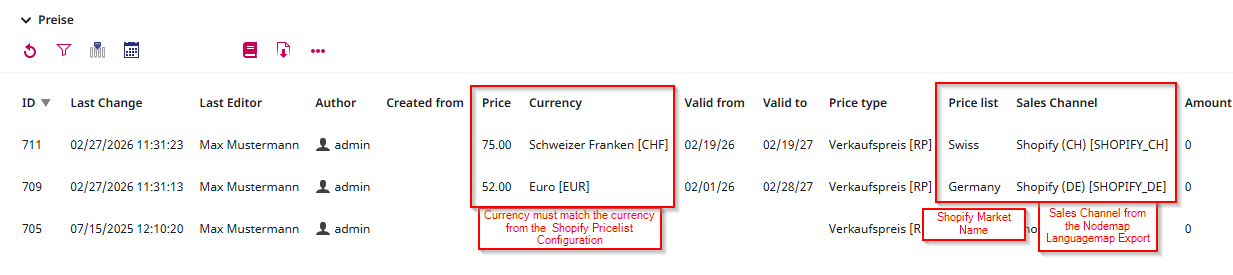
Example of the price table configuration:
To remove the prices from a price table, send an empty array at the key “prices”:
(Deprecated) API Tokens
Deprecated since 01.01.2026
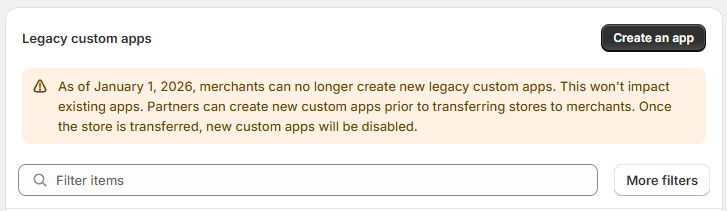
To use the Shopify Transmitter set the API Key for the Storefront API and the Admin API in the Contentserv credentials and select them in the transmitter settings.
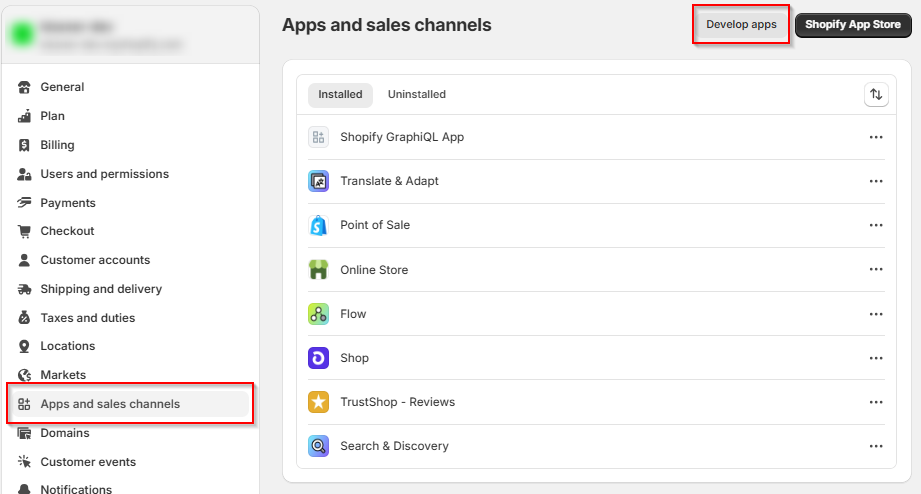
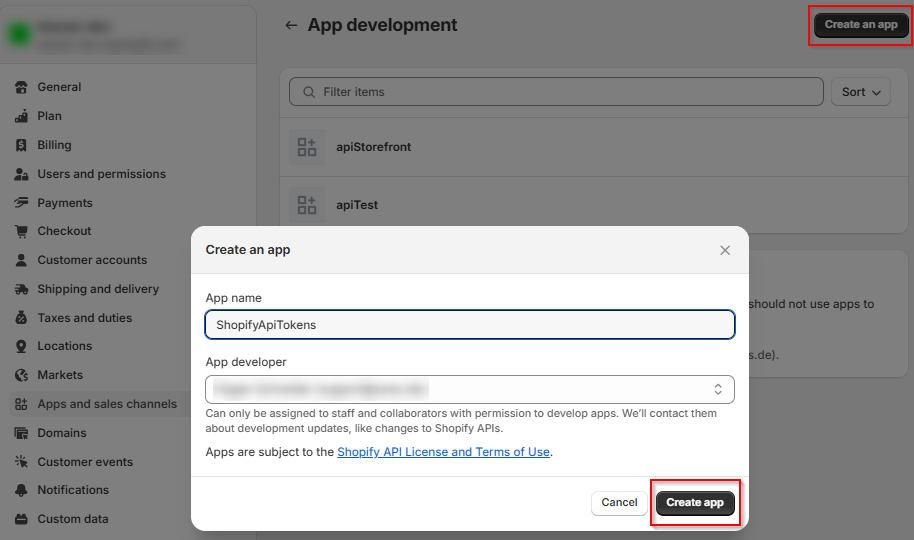
First you need to generate these tokens, therefore you can follow this guideline
| Shopify generate Tokens |
|---|
 |
 |
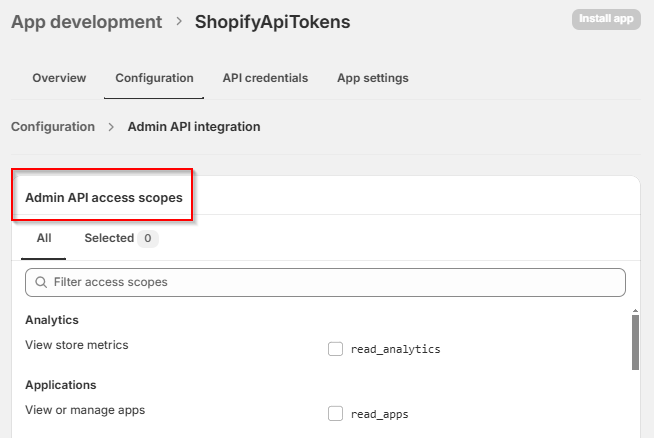
| Go to the configuration tab and select the Admin API Integration. Please select every point in the Admin Api access scope |
 |
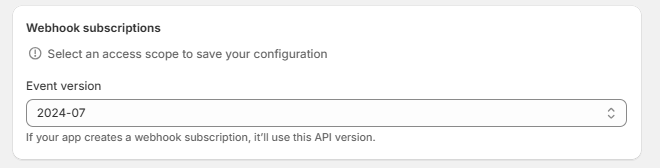
| After the access scope please select the API version e.g. 2024-07 |
 |
| Now that the Admin API is configured correct, go to the configuration of the Storefront API and select every point of the access scope In the Storefront API you can’t set a version for the API |
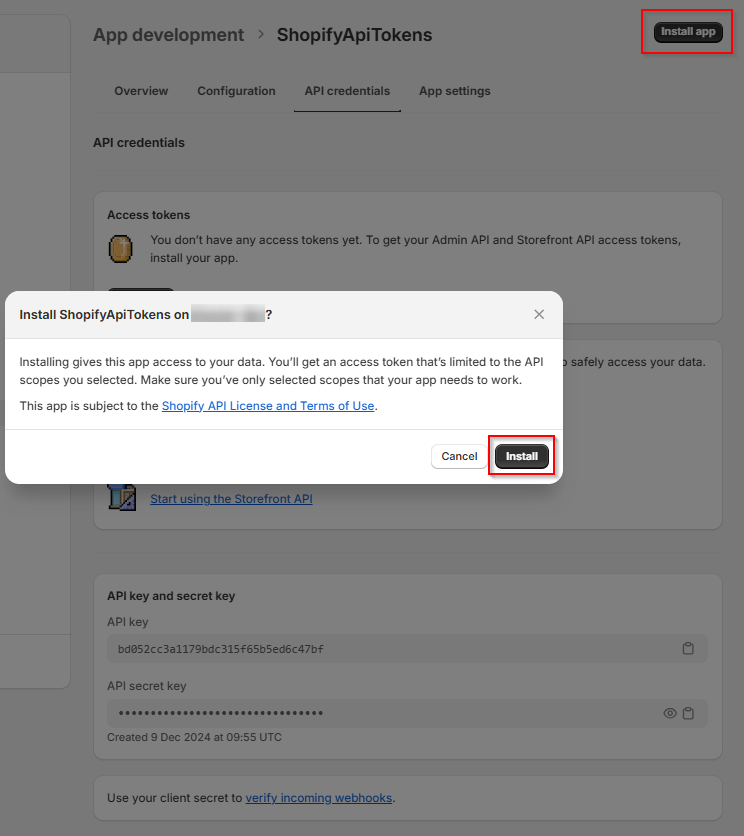
| With both APIs setup, click on “Install” and install the app |
 |
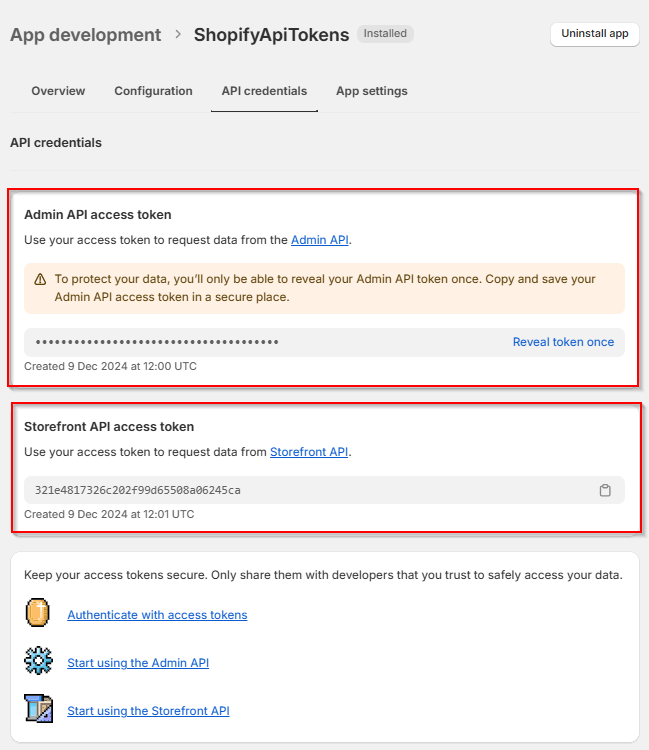
| Important: Copy the Admin API key now and save them, because you can only reveal the admin API key once! |
 |