Shopify Products, Variants and Options
Products are exported with the node mapping productsUpdateCreate, their variants with variants. This page describes the product fields, simple products, products with variants and their options, the initial stock and gift cards. The setup is on Shopify Transmitter.
Product fields
Every product row needs the PIM identifier (custom.pimid) and a title. The other fields are optional rows in the template:
| Field | Key | Note |
|---|---|---|
| Title, description | productInformation|title|{StoreView}, …|descriptionHtml|{StoreView} | translated |
| Handle | productInformation|handle | lower-case letters, digits and hyphens, unique in the shop. Without a handle Shopify builds one from the title. |
| Status | productInformation|status | ACTIVE, DRAFT or ARCHIVED |
| Vendor, product type | …|vendor, …|productType|{StoreView} | the product type is free text, not the Shopify taxonomy |
| Category | productInformation|category | a category of the Shopify Standard Product Taxonomy as GID, e.g. gid://shopify/TaxonomyCategory/aa-1-13-8 |
| Tags | productInformation|tags | comma-separated |
| Theme template | productInformation|templateSuffix | the suffix of product.<suffix>.json in the theme |
| SEO title and description | …|seo|title|{StoreView}, …|seo|description|{StoreView} | translated; empty = Shopify uses the title |
Media, metafields, collections, sales channels, market prices and bundles have pages of their own; see the list on Shopify Transmitter.
Important:
- The tags are replaced in every export: tags added in Shopify by hand or by other apps are removed.
- Changing the handle of a published product changes its URL.
- All product fields and metafields go to Shopify in one request. If Shopify rejects one value (e.g. an invalid metafield), the whole product update fails, and the product’s options, variants and media are not processed in this run.
Simple products
A product without variants has one default variant in Shopify. Its values come from the simpleproduct|… rows of the products datamap. Products with variants ignore these rows.
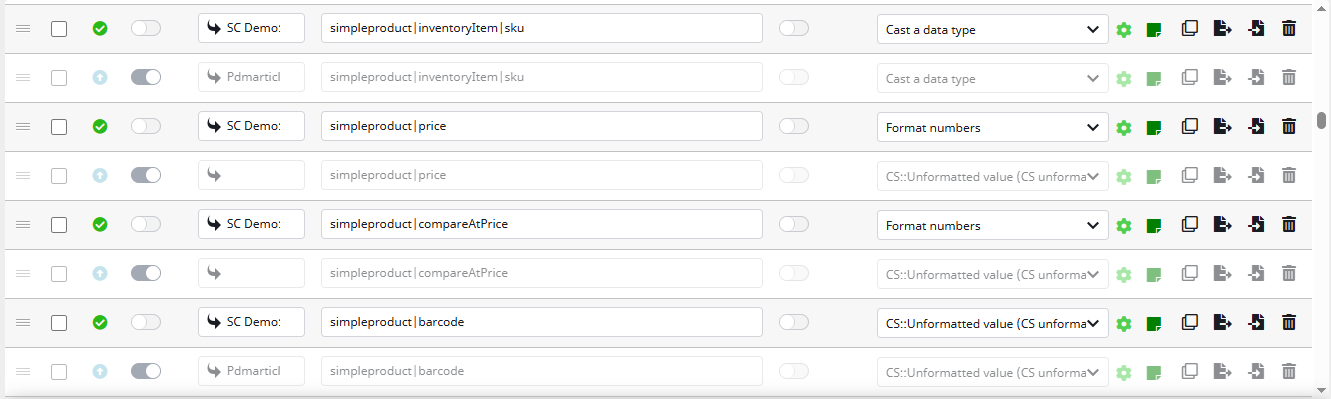
| Field | Key (variants datamap: without simpleproduct|) | Value |
|---|---|---|
| SKU | simpleproduct|inventoryItem|sku | text |
| Price, compare-at price | …|price, …|compareAtPrice | decimal with a dot, e.g. 19.90 |
| Cost | …|inventoryItem|cost | decimal |
| Barcode | …|barcode | text, e.g. the EAN |
| Weight | …|inventoryItem|measurement|weight | value (number) and unit (GRAMS, KILOGRAMS, OUNCES, POUNDS) |
| Inventory tracked, inventory policy | …|inventoryItem|tracked, …|inventoryPolicy | 1/0; DENY or CONTINUE (sell when out of stock) |
| Requires shipping, taxable | …|inventoryItem|requiresShipping, …|taxable | 1/0 |
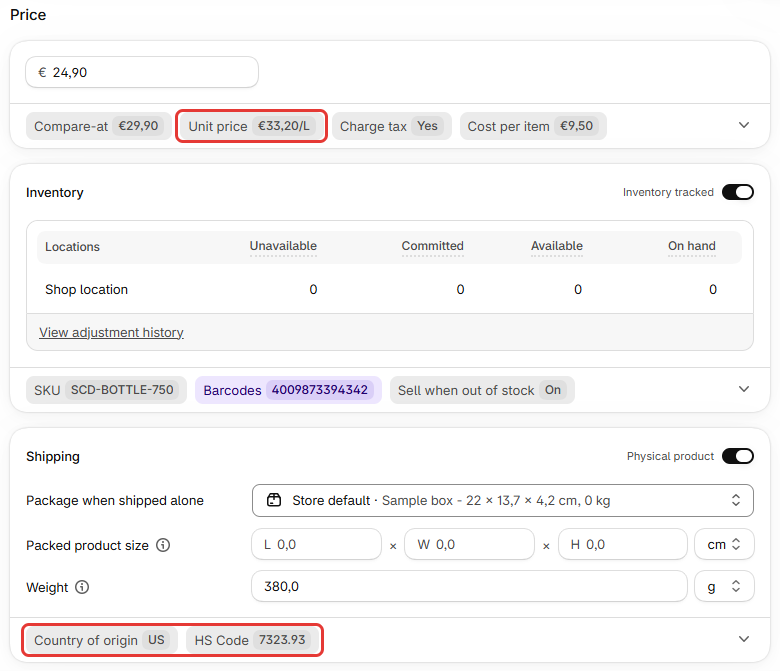
| Country and province of origin, HS code | …|inventoryItem|countryCodeOfOrigin, …|provinceCodeOfOrigin, …|harmonizedSystemCode | ISO country code, province code, HS code as text |
| Unit price | …|unitPriceMeasurement, …|showUnitPrice | quantity, quantity unit, reference value, reference unit, e.g. 750 ML per 1 L |
| Tax code | …|taxCode | only for shops with Avalara AvaTax |
| Initial stock | …|inventoryQuantities | see Initial stock |
| Market prices, variant metafields | …|catalogPrices, …|metafields|… | see Markets, Sales Channels and Prices and Metafield Field Plugin |
Important:
- All values of the default variant are sent in one request. If Shopify rejects one, none of them arrive.
- Numbers and prices must be numbers: send them unformatted or with the format Format numbers (decimal point
.), weights and unit-price values with Cast a data type. A formatted text like380.00 gis rejected. - Send the barcode and the HS code unformatted: Format numbers turns
640411into640411.00. - A province code needs a country that has provinces in Shopify (e.g. US, CA).
- Booleans as
1/0: the textfalsecounts as true.
Products with variants
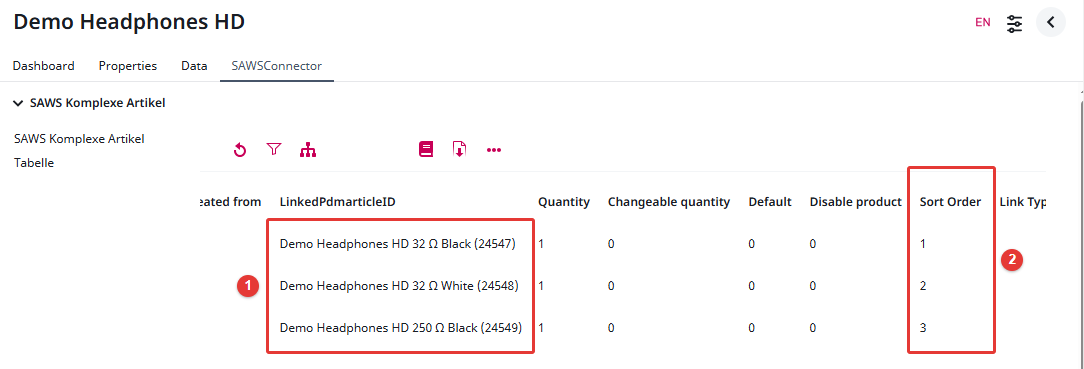
The variants of a product are the rows of its complex article table (1), in the order of the column Sort Order (2). They are not linked to the sales channel themselves; the product’s variants row adds them to the export:
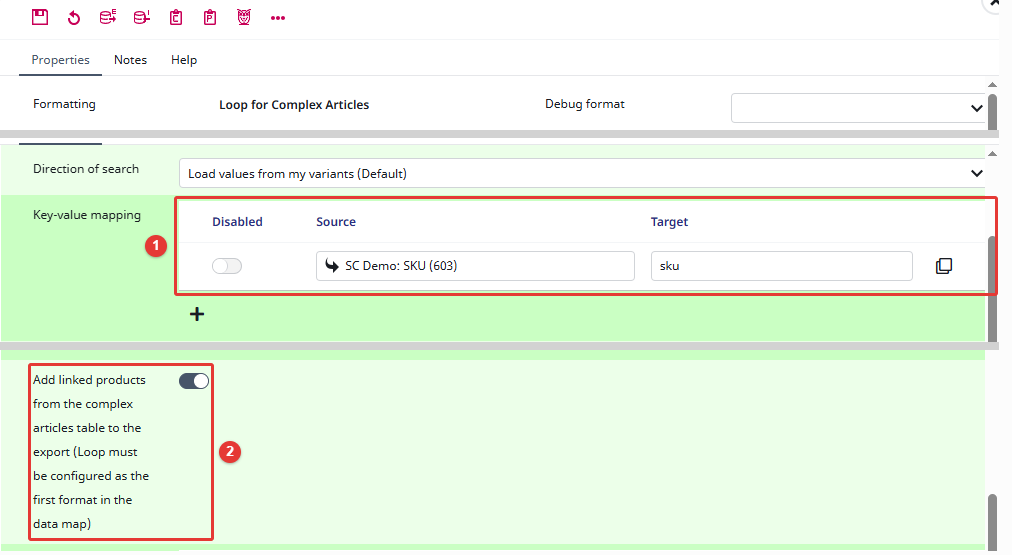
The variants row is a Loop for Complex Articles that sends the list of the variants’ SKUs. Its product map reads the SKU attribute (1), and Add linked products from the complex articles table to the export (2) must be on:
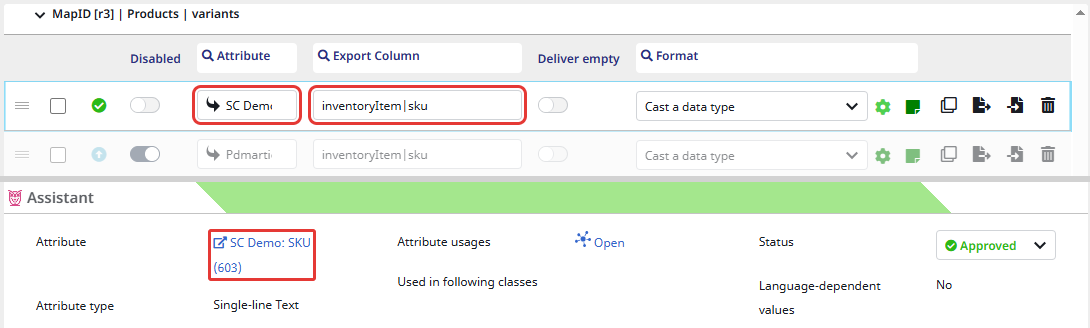
In the variants datamap, inventoryItem|sku sends the variant’s SKU from the same attribute. The other variant fields are the same as for simple products, without simpleproduct| in the key.
How the transmitter syncs the variants of an existing product:
- Variants are matched by SKU. A new SKU creates a variant, an exported SKU updates it.
- A variant whose SKU is no longer exported is deleted in Shopify. When creating or updating the variants failed in this run, nothing is deleted.
- The variant order in Shopify is the order of the complex article table.
Available from: variant order 1.19.7 · 1.20.0; order right after creation and nothing deleted after a failed run: 1.21.19
Important:
- The SKU in the
variantsrow and in the variants datamap must come from the same attribute. A SKU in the list without a variant record stops the variant sync of the product. - Every variant needs a SKU. A variant without one fails the validation, and none of the product’s variants are synced.
- A variant that is linked to the sales channel itself is exported as a product of its own.
Options
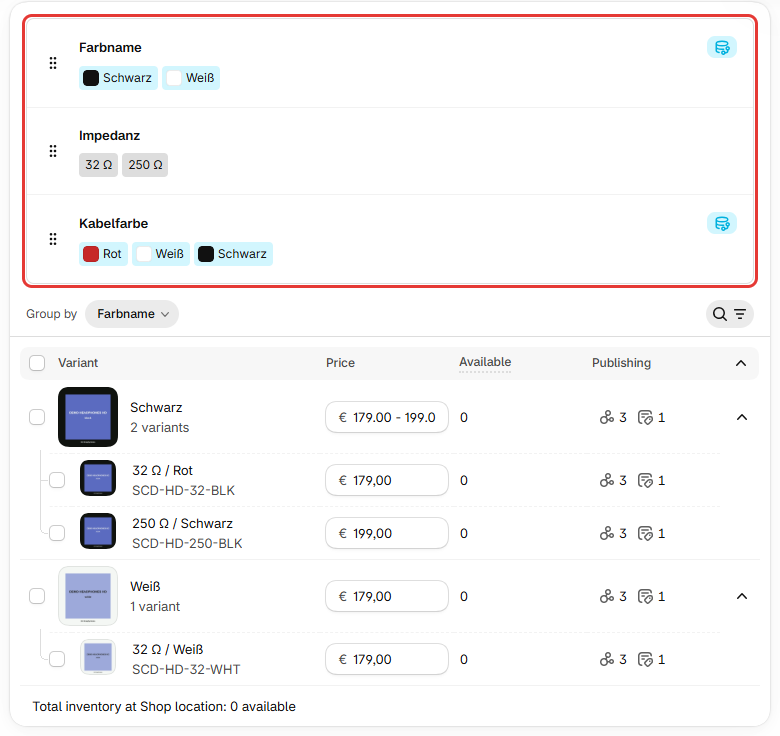
Shopify allows up to three options per product, e.g. colour, size and material. The product sends the option names, each variant its value per option. There are three ways to send them. Use one per datamap, never two: they write the same data.
| Way | In the template | Options |
|---|---|---|
| Option formats (from 1.22.0) | active | classic and linked in any mix, one row on the products and one on the variants |
| Options per position | for 1.21: deactivated in the datamap with legacy rows, noted as Alternative | classic and linked in any mix, one row on the products and one on the variants, with the values of three positions from attributes |
| Rows from configuration attributes | the previous template; deactivated in the datamap with legacy rows, noted as Legacy configuration | classic only |
Important: options cannot be renamed through the transmitter. An option renamed in the PIM is added to the product as a new option. Rename it in Shopify as well, before the next export. From 1.21.20, the job log warns when an option is added to a product that already has options.
Option formats
Available from: 1.22.0
One row on each side:
- products:
productInformation|productOptions|{StoreView}with the format Send Shopify product options - variants:
optionValues|{StoreView}with the format Send Shopify option values
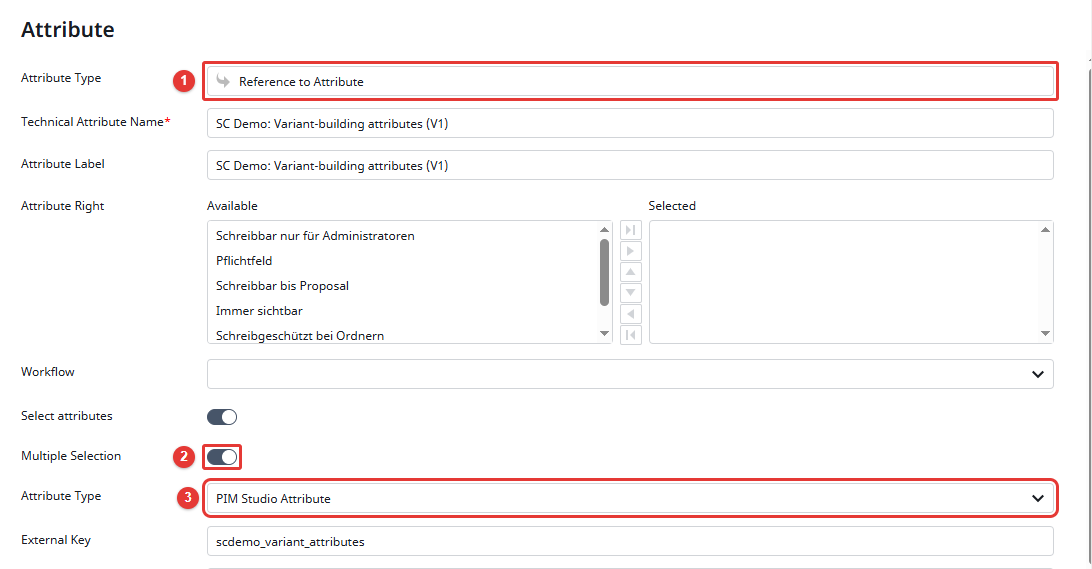
Both read the attribute that lists the attributes the variants differ in, e.g. Farbe and Größe. It is an attribute reference (1) with multiple selection (2) whose attribute class is the product attributes (3):
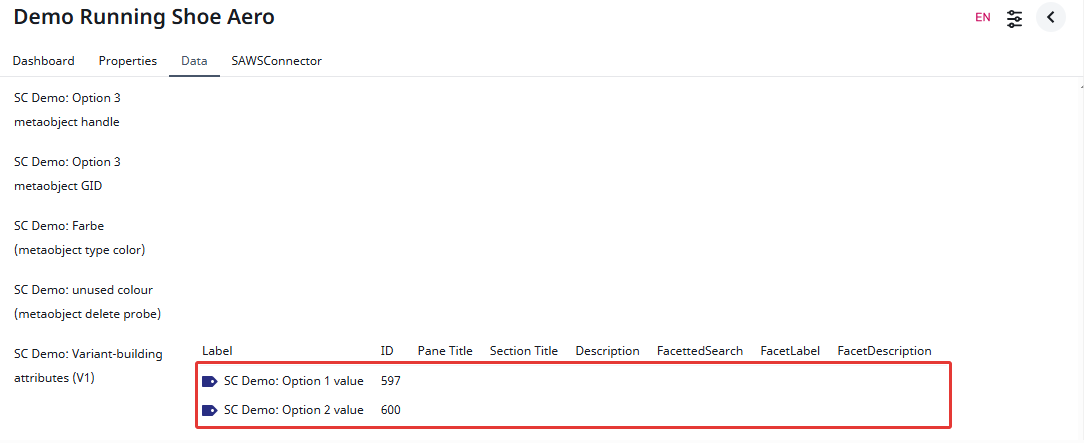
Each listed attribute becomes an option:
- The option name is the attribute’s label, translated with the label’s translations.
- The order of the list is the option order in Shopify.
- The value of a variant is its formatted value of the attribute, translated.
- Attributes that no variant has a value for are left out. After three options the rest are not sent, and the job log names them.
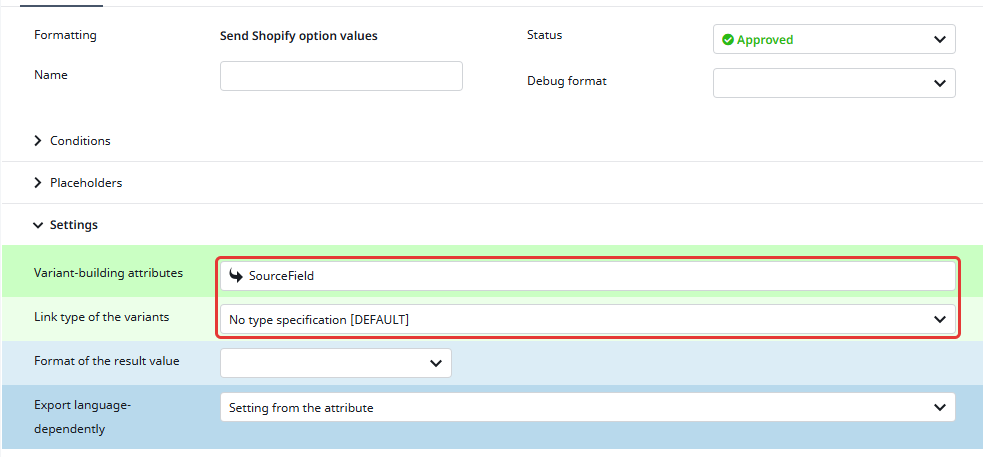
Both formats have the field Variant-building attributes for that attribute. As delivered it is SourceField, the row’s own attribute. A variant without its own list uses its product’s.
The field Link type of the variants says which rows of the complex article table are the variants. As delivered it is No type specification: the rows without a link type. If your variant rows have a link type of their own, e.g. because a product is also a bundle component, select it in both formats, the same as in the loop of the row variants.
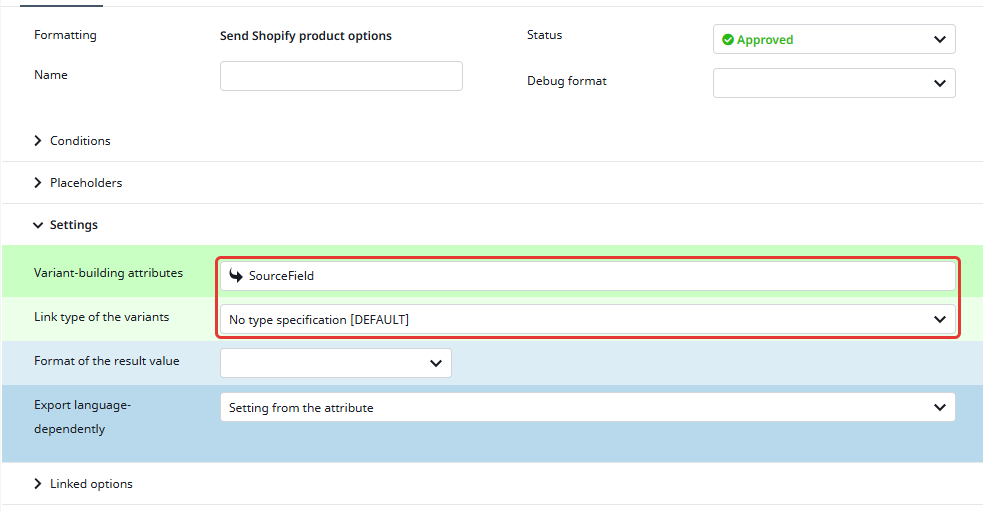
The format on the variants has only these two fields: which options are linked comes from the product.
Important:
- Every variant needs a value for every option of its product. One empty value and none of the product’s variants are created; the job log names the variants without a value.
- Two variants with the same combination of values are not possible in Shopify.
- An attribute without a label and name is sent as the option
MISSING_LABEL_<attribute ID>, a value of a value range without a label asMISSING_LABEL_<value ID>. Fill the labels in every language.
Linked options (metaobjects)
An option can be linked to metaobject entries, e.g. colours with a swatch. The option then takes its values from a product metafield of the type list of metaobjects.
Available from: options per position 1.21.12; option formats 1.22.0
In Shopify you need:
- the metaobject definition and its entries, e.g.
colorwith black, white, red (see Shopify Metaobject Entries) - a product metafield definition of the type list of metaobjects for that definition, e.g.
custom.color, one per linked option
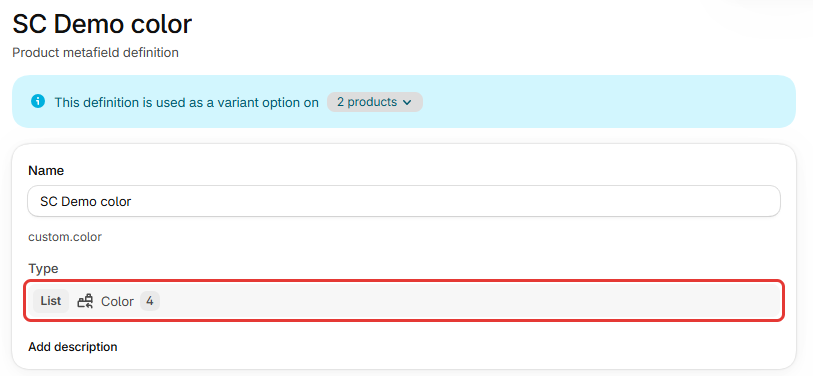
With the option formats, the products’ format has a section Linked options. It is closed when the format opens. Add one row per linked attribute:
- Attribute: the option’s attribute. It must be in the list of variant-building attributes as well.
- Metafield key: the key of the list metafield, e.g.
color. The namespace comes from the field Metafield namespace (defaultcustom). A key with its own namespace, e.g.my_fields.color, overrides it for this option. - Metaobject type: the type of the metaobject definition; empty = the attribute’s external key. Without both, the job log says so and the option’s values are not sent.
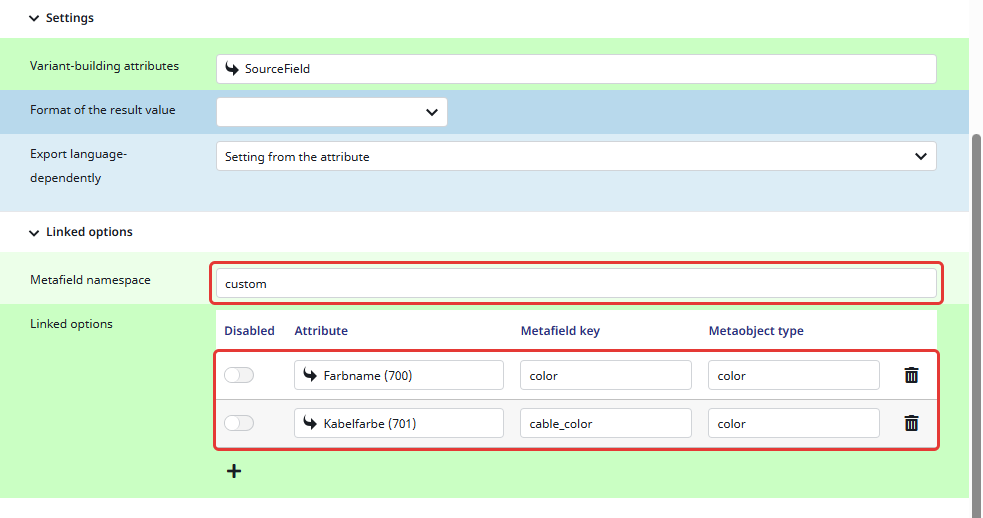
The attribute is a value range. The external key of each value is the handle of its metaobject entry, as the metaobject datamap creates them. A value without an external key is not sent, and the job log names it. The variants need no setting for linked options.
With the options per position (see below):
- Product: the entry
linkedMetafieldof a position, with the format Send linked Shopify-Metafield. It reads the key of the list metafield (e.g.color) from an attribute; the namespace is a setting of the format. An option is linked when that attribute is filled, so each product decides per position. - Variant: the entry
linkedMetafieldValueof a position, with the metaobject entry, either as GID (gid://shopify/Metaobject/…) or as@metaobjectRef:color|black(definition type and handle; from 1.21.19).
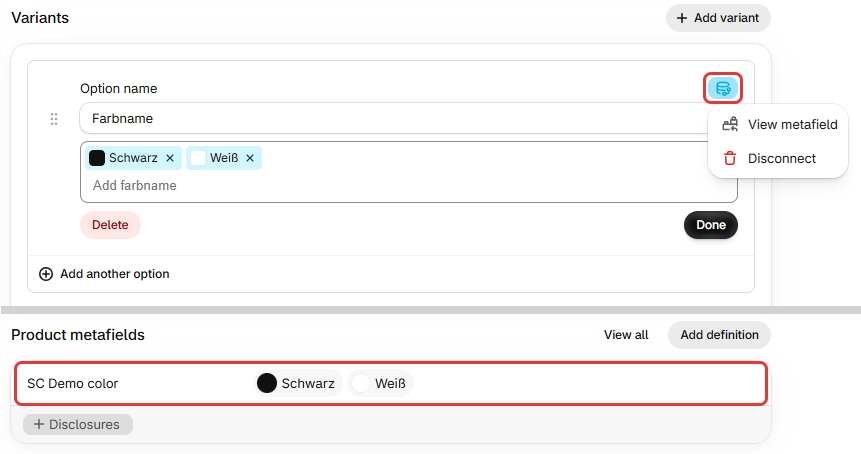
Linked and classic options can be combined on one product in any order.
Important:
- Export linked options in every run, not only when the product is created. The option formats always do.
- The metaobject entries must exist in Shopify before the product export: run the metaobject job first.
- With the option formats, a value without an external key cannot be linked: it is not sent, and the job log names it.
- A metafield can be linked to one option only. Two options on the same metaobjects (e.g. colour and cable colour) need two list metafields.
- A new value (a new colour on a new variant) is added to the option automatically. When the last variant of a value is deleted, the value is removed from the option and from the product’s list metafield (both from 1.21.19).
Options per position (for 1.21)
The datamap with legacy rows has one more row on each side, deactivated next to the option formats and noted as Alternative. It sends the options from attributes per position, up to three positions. On 1.21, use these rows instead of the option formats. From 1.22.0 they still suit a project that keeps its option names in attributes per position.
Option names on the product
The row productInformation|productOptions|{StoreView} has the format Create an array, with one entry per position. Each position is an array of its own:
name: the option name, e.g. Farbe / Colorvalues: the placeholder valuePRE_VARIANTfor a classic option. Shopify only creates an option together with a value; the placeholder disappears once the variants exist.linkedMetafield: for a linked option, see Linked options above
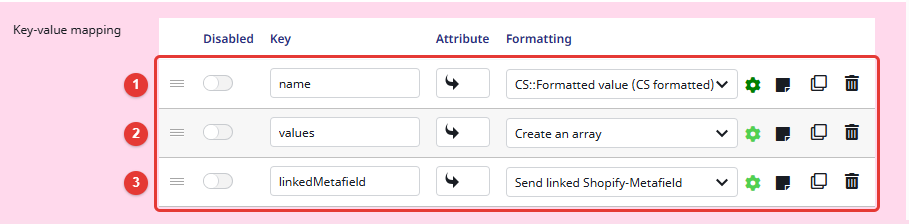
A position is skipped while its option name is empty, so each product uses as many positions as it has options. The order of the positions is the option order in Shopify, also on updates. Classic options are sent when the product is created; once one of its options is linked, the row goes out in every run.
Available from: option order on creation 1.21.13; also on updates 1.21.19
Option values on the variants
The variants’ row optionValues|{StoreView} is built the same way, one entry per position:
optionName: the option name, exactly as on the product (default language)name: the variant’s value, e.g. Schwarz / BlacklinkedMetafieldValue: for a linked option, the metaobject entry
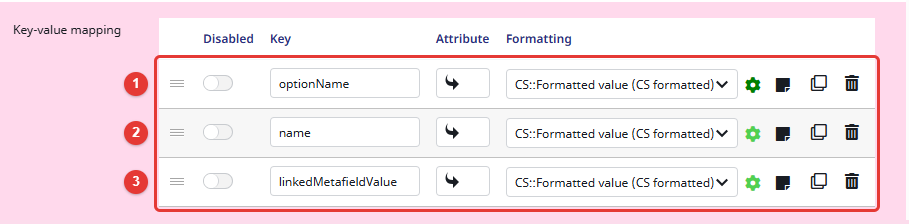
The variant records need the option names too, e.g. inherited from the product.
Important:
- In the template, the entries and their conditions have no attributes yet. Set them for each position you use (option name, value, and for linked options the attributes with the metafield key and the metaobject entry), and the attribute with the Shopify ID in the condition of the products’ row.
{StoreView}in the key sends the default language. From 1.22.0, the option names and values of the other languages become translations, matched by position, so fill the option names in every language. On 1.21, the options go out in the default language only.- Every variant needs a value for every option of its product. One empty value and none of the product’s variants are created (“You need to add option values for …”, or “Option does not exist”).
- Two variants with the same combination of values are not possible in Shopify.
- Earlier templates have one row per entry instead, e.g.
productInformation|productOptions|0|name|{StoreView}andoptionValues|0|name|{StoreView}. They work the same and are translated on 1.21 as well.
For linked options with these rows, see Linked options above.
Options from configuration attributes (previous template)
The previous template builds classic options from the same attribute as the option formats, the list of variant-building attributes. Its rows are in the datamap with legacy rows, deactivated:
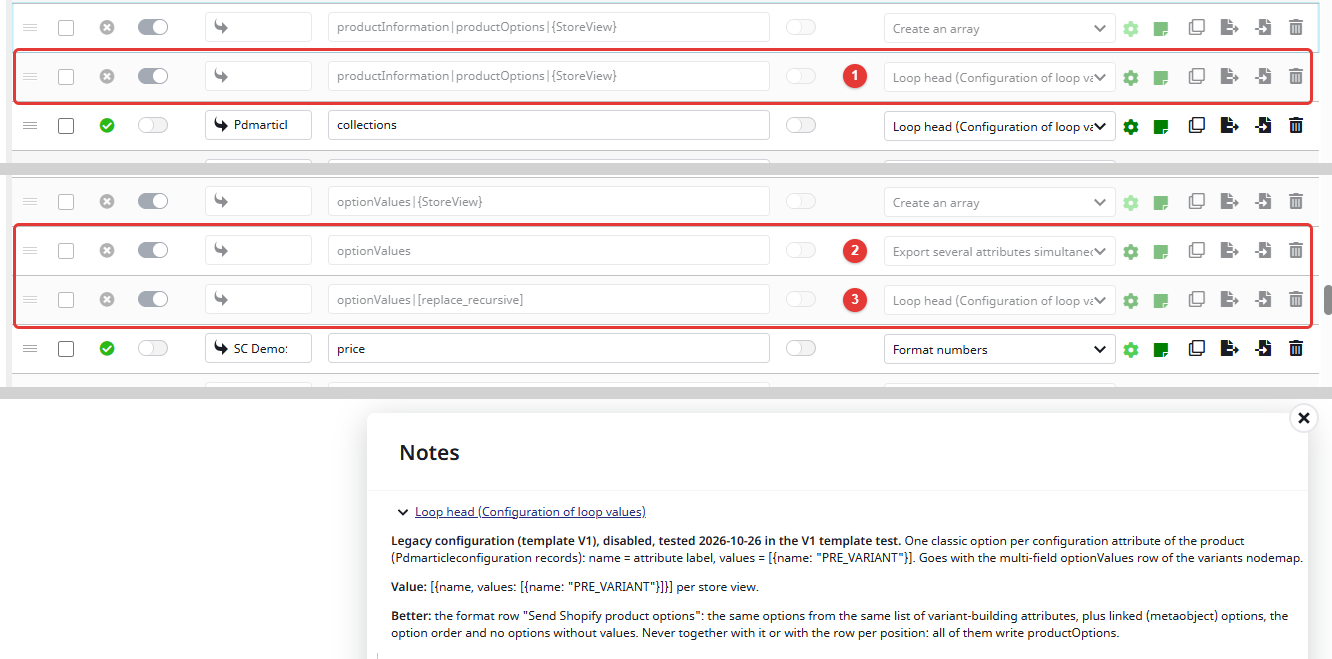
- Product:
productInformation|productOptions|{StoreView}(1) reads an attribute reference on the product that lists the variant-building attributes. Each attribute becomes an option, named after the attribute’s label. - Variants, one of two rows:
optionValues(2, format Export several attributes simultaneously): one list of attributes for all products, selected in the format. Switch on skip empty when products use different attributes.optionValues|[replace_recursive](3): reads the attribute list of each variant’s product, so every product can have its own options.
| Works | Does not work |
|---|---|
| 1 to 3 classic options per product a different set of options per product (row optionValues|[replace_recursive])translated option values variants added and removed later | linked options (metaobjects, colour swatches) more than three options (Shopify’s limit) option names other than the attribute’s label |
Important: from 1.22.0, the option formats do the same from the same attribute, and they also take linked options.
Initial stock
The rows simpleproduct|inventoryQuantities and inventoryQuantities (variants) set the stock of new products at a Shopify location:
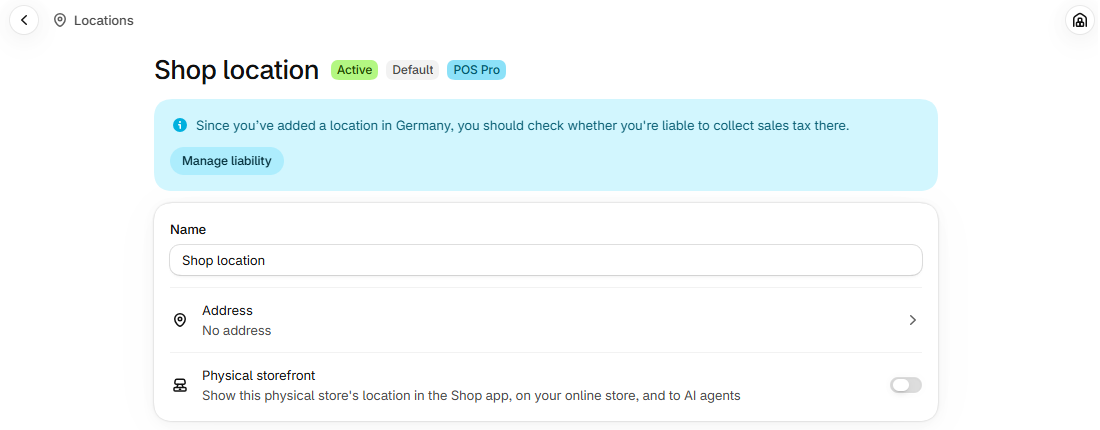
[{"locationId": "gid://shopify/Location/123456", "availableQuantity": 5}]The location ID is the number at the end of the location’s address in the Shopify admin (Settings > Locations, open the location), e.g. admin.shopify.com/store/scdemo/settings/locations/119685644672 → gid://shopify/Location/119685644672.
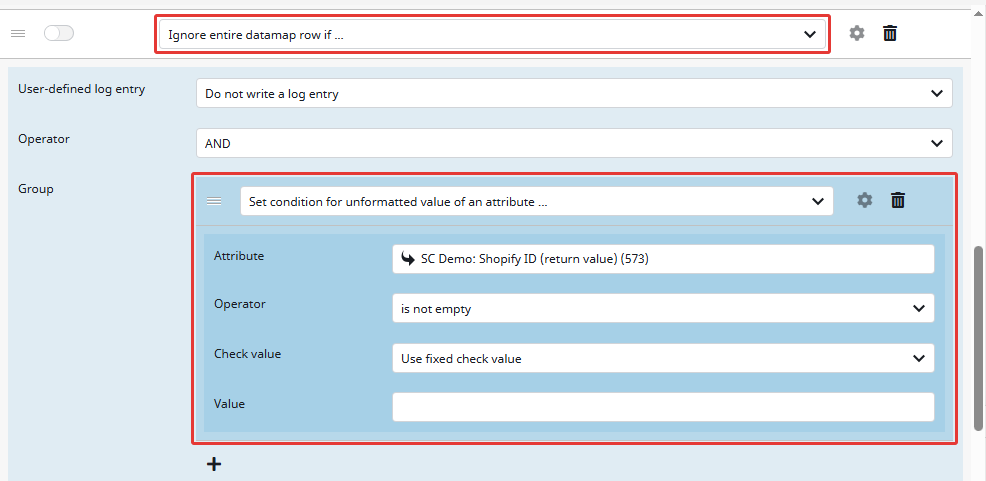
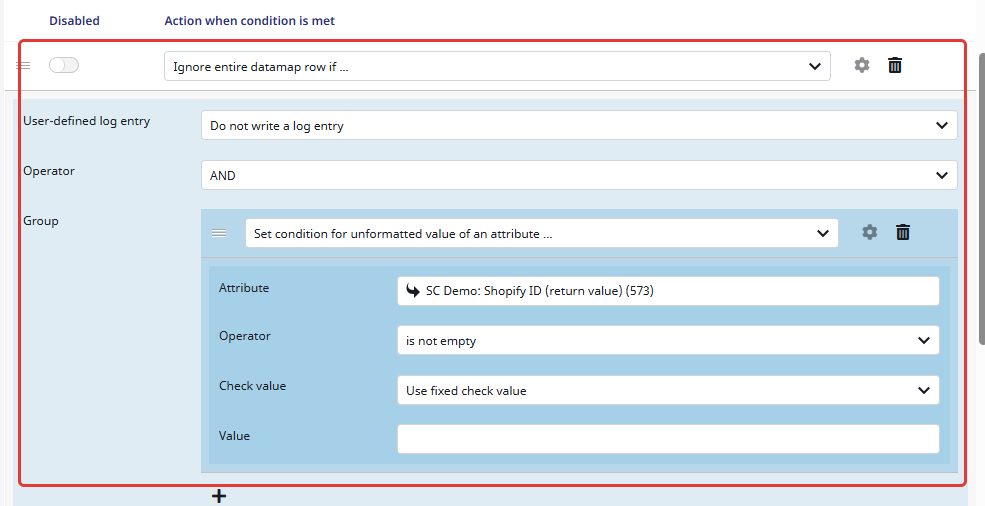
In the template the stock is only sent while the product or variant has no Shopify ID yet, i.e. on creation. This needs the Shopify IDs in Contentserv (see Shopify Transmitter); set that attribute in the row’s condition.
Available from: variants in every version; simple products 1.21.19
Important: the transmitter does not synchronise stock. Without the condition, every export overwrites the stock in Shopify.
Gift cards
The row productInformation|giftCard (1 or 0) creates the product as a gift card product. In Shopify, gift card products are listed with the other products; the filter Gift card shows only them.

Important:
- The flag can only be set when the product is created. The template’s row is skipped once the product has a Shopify ID.
- A bundle cannot be a gift card. From 1.22.0 the transmitter leaves the flag out for bundles; up to 1.21, the template’s row has a condition on the bundle components.
- If Shopify refuses gift card products (“Gift card products can only be created after they have been activated”), create one gift card product by hand first: in Shopify, gift card products are created under Products > Gift cards. Then export again.
- Gift cards are usually not shipped, not tracked and not taxed: set requires shipping, tracked and taxable to
0.
Sales channel table of a product
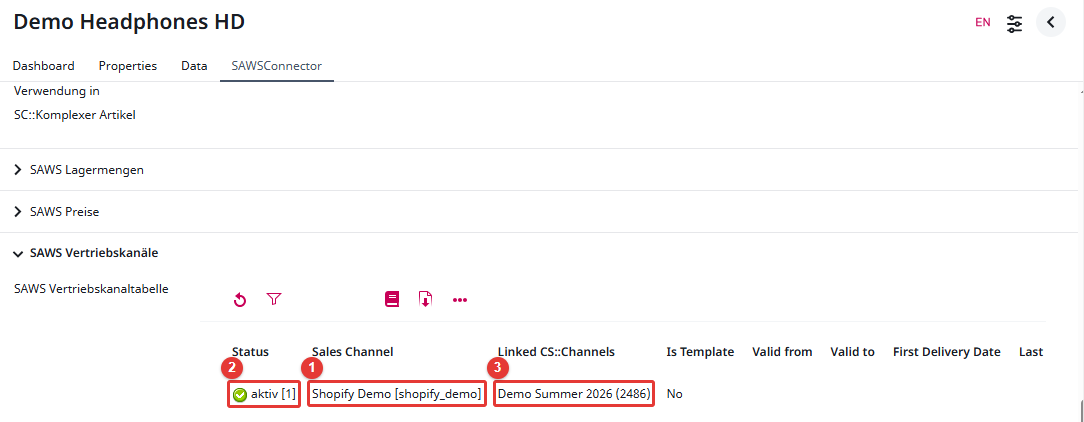
Products are read through the SAWSConnector sales channel. A product is linked to the channel (1), active (2), with the structure groups it belongs to (3); these become its collections in Shopify (see Shopify Collections).